Customizing the Geek Window
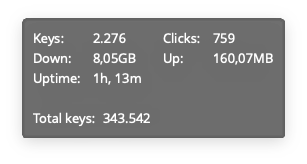
The Geek Window is a customizable overlay window for monitoring system information such as keys, clicks, download, upload software, etc. With the Geek window, you can create a personalized, always-on-top overlay that displays your WhatPulse statistics while using other applications on your computer. You can move the geek window, customize transparency, and choose the background and font color. As the name suggests, it is designed for the geek in you.
Window style
Since WhatPulse 6.3, the Geek Window has two styles, switched with the Window style toggle at the top of Settings > Geek Window:
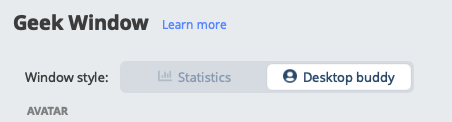
- Statistics: the classic floating stats panel described on this page. This is the default.
- Desktop buddy: Pulsar, a desktop avatar that bounces on your keystrokes and clicks.
Switching styles applies live; no restart needed.
Available options
| Callout | Option | Action |
|---|---|---|
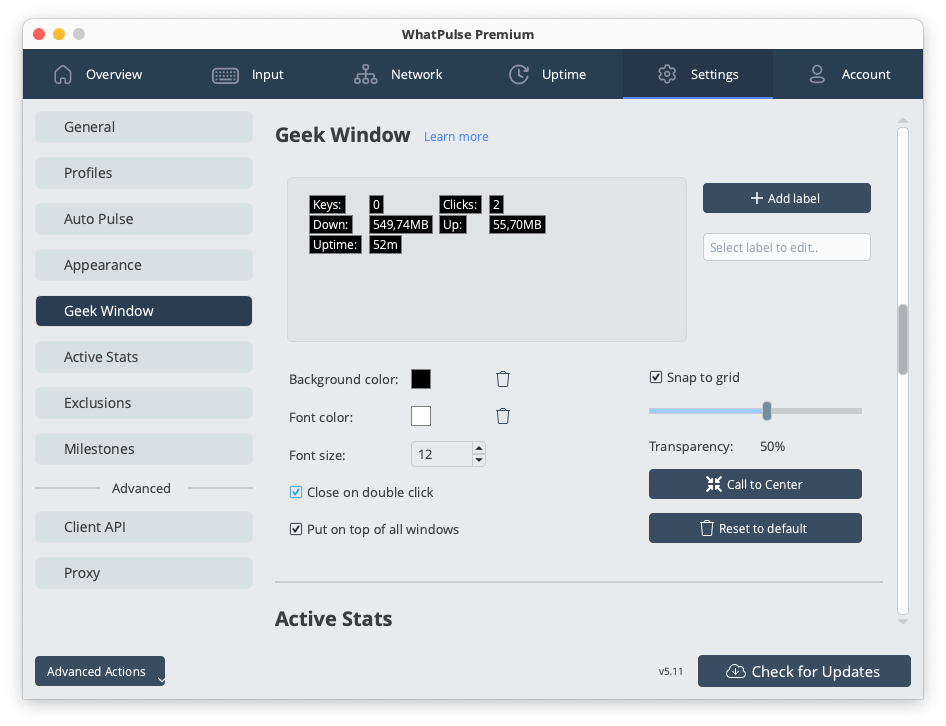
| 1 | Configure section | Provides a preview of the Geek Window. You can add or delete statistics for this section. |
| 2 | Reset | Enables you to reset the Geek Window to default. |
| 3 | Call to Center | Brings the Geek Window to the center of the screen. |
| 4 | Font Setting | Enables you to configure the Geek Window font color. |
| 5 | Transparency | Enables you to configure the transparency setting. Move the slide bar to the left to decrease the transparency or the right to increase the transparency. |
| 6 | Close Geek Window on double click | Option to close the Geek Window when double-clicked. |
| 7 | Put Geek Window on top | Option to keep the Geek Window overlay on top of other windows. The overlay will always be visible if this option is enabled, even when other windows are open. |
Start the Geek Window
- Click the WhatPulse icon in the system tray (or menu bar on macOS) to open the tray popup.
- Click Open Geek Window. The same button reads Close Geek Window while it is open.
Add stats to the Geek Window
You can configure statistics that you want to view in the Geek Window by adding or deleting statistics from the Geek window. To add a statistic, do the following:
- Open WhatPulse and go to the Settings tab and Geek Window section.
- In the Geek Window, click Add. You see an Edit me label in the preview section.
- Select the Edit me label in the left window, and do one of the following:
- Rename the Edit me label as needed.
- Select the statistic you want to see from the Insert statistic drop-down menu.
Your changes are automatically saved to the Geek Window. Have it open, next to the settings, to see your changes being reflected.
You can also add two labels; use one label to add the name of the statistic and another to insert the actual statistic.
Geek Window formulas
Starting WhatPulse 6.1, the Geek Window supports formulas that let you perform arithmetic on your stats. This allows you to create custom computed displays like keys per hour, combined statistics, or percentages.
Syntax
Formulas use {= ... } delimiters within label text:
{= expression }
You can mix static text and formulas in the same label:
Keys/hr: {= %TodayKeys% / (%TodayUptime% / 3600) }
Combined: {= %LocalKeys% + %TotalKeys% }
Ratio: {= (%LocalKeys% / %TotalKeys%) * 100 }%
Supported operators
+addition-subtraction (and unary minus)*multiplication/division()parentheses for grouping
Result formatting
- Whole numbers display without decimals, e.g.
1,234 - Fractional results display with 2 decimal places, e.g.
3.14 - Formatting is locale-aware (uses your system's number formatting)
Errors
If a formula contains an error, it displays #ERR instead of a result. Common causes:
- Division by zero (e.g.
{= 1 / 0 }) - Unknown or misspelled variable name
- Missing closing parenthesis
- Invalid syntax (e.g.
{= 1 + })
Common formula recipes
Here are some example formulas you can use in the Geek Window:
  Key countdown to 10,000 keys
  See how many keys you have left until you reach 10,000 keys today.
  {= 10000 - %TodayKeys% } keys to go

  Keys per hour today
  See how fast you're typing during today's session.
  {= %TodayKeys% / (%TodayUptime% / 3600) } keys/hr

  Clicks as a percentage of total input
  Find out what proportion of your input is clicks vs keys.
  {= (%LocalClicks% / (%LocalClicks% + %LocalKeys%)) * 100 }% clicks

  Combined unpulsed and total keys
  Show your true all-time key count including what hasn't been pulsed yet.
  {= %LocalKeys% + %TotalKeys% } total keys

  Download speed in MB/s
  Convert the raw byte rate into something more readable.
  {= %LocalDownloadRate% / 1048576 } MB/s

  Mouse distance in meters
  Convert inches to metric.
  {= %LocalDistance% * 0.0254 } m

  Mouse distance in kilometers (total)
  See your all-time mouse travel in km.
  {= %TotalDistance% * 0.0000254 } km

  Click-to-key ratio
  How many clicks do you make for every keypress?
  1:{= %TotalKeys% / %TotalClicks% } click:key

  Unpulsed data as percentage of total
  See how much of your total stats are sitting unpulsed.
  {= (%LocalKeys% / (%LocalKeys% + %TotalKeys%)) * 100 }% unpulsed

  Average keys per day
  Based on your total stats and total uptime (converted from seconds to days).
  {= %TotalKeys% / (%TotalUptime% / 86400) } keys/day

  Today's upload in GB
  Convert today's upload bytes to gigabytes.
  {= %TodayUploaded% / 1073741824 } GB up