Pulsar - the desktop buddy
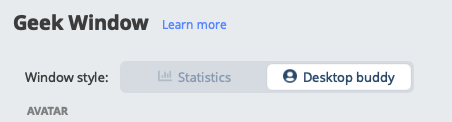
Starting with WhatPulse 6.3, the Geek Window has two styles: the classic floating statistics panel, and Pulsar, a Bongo Cat inspired desktop avatar that reacts to your typing and clicking. Pulsar bounces on your keystrokes, alternates hands on its little keyboard while you type, falls asleep when you stop, wakes up surprised when you burst back in, and celebrates after a successful pulse.
Switching to Pulsar
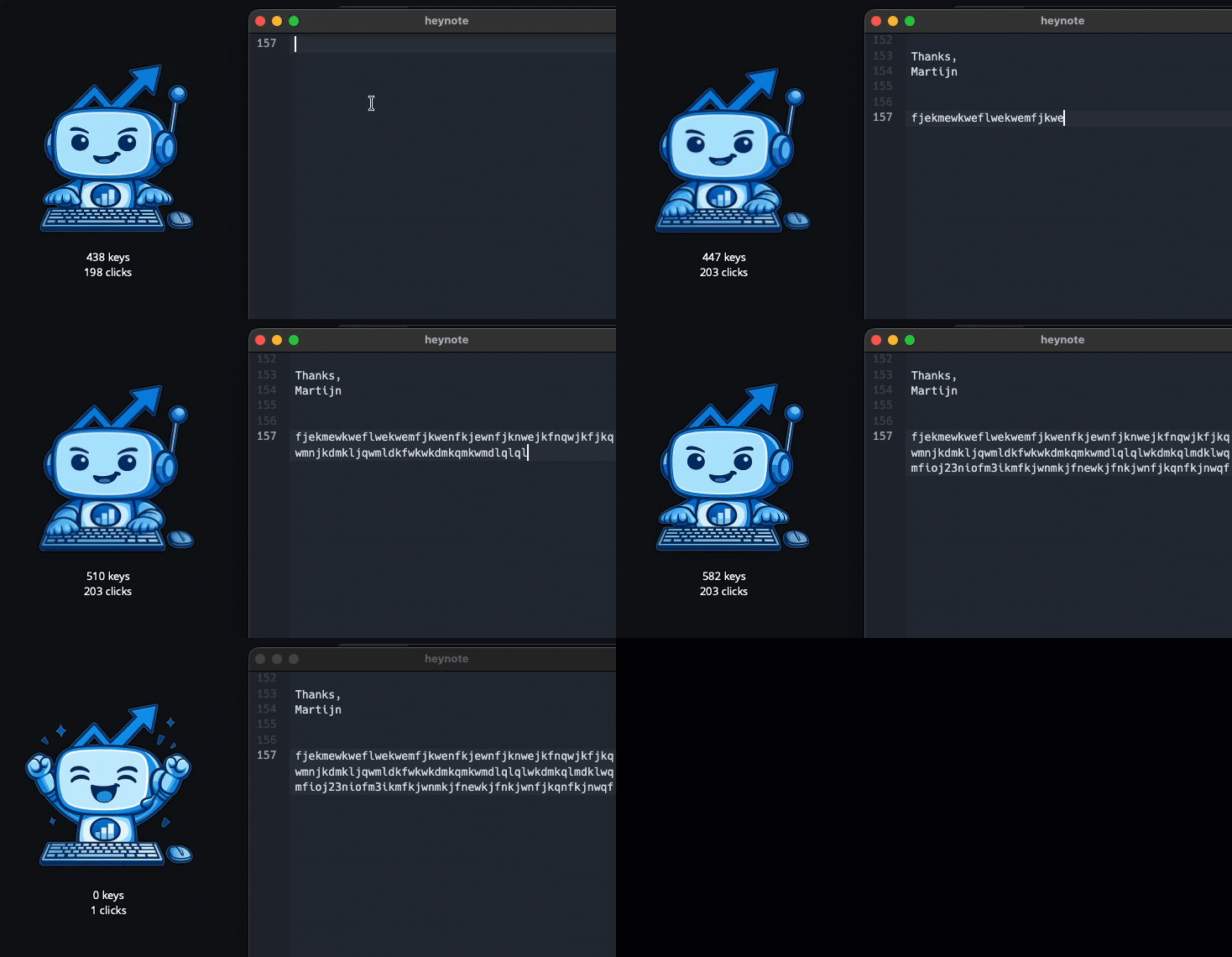
- Open WhatPulse and go to the Settings tab, then the Geek Window section.
- At the top, set Window style to Desktop buddy (the other option, Statistics, is the classic Geek Window).
- The window switches live; no restart is needed.
To show or hide the window itself, use Open Geek Window / Close Geek Window in the tray popup, just like the classic style. The classic statistics panel remains the default style.
What Pulsar does
- Bounces on input: every keystroke and mouse click makes the avatar bounce, alternating left and right hands. Type fast enough and both hands drum at once.
- Sleeps when idle: after about 20 seconds without input, Pulsar nods off and breathes slowly. Any key or click wakes it up.
- Gets surprised: a sudden burst of input startles it for a moment.
- Celebrates: after a successful pulse, Pulsar celebrates for a few seconds.
You can drag the avatar anywhere on your screen, and it remembers its position separately from the classic Geek Window.
Settings
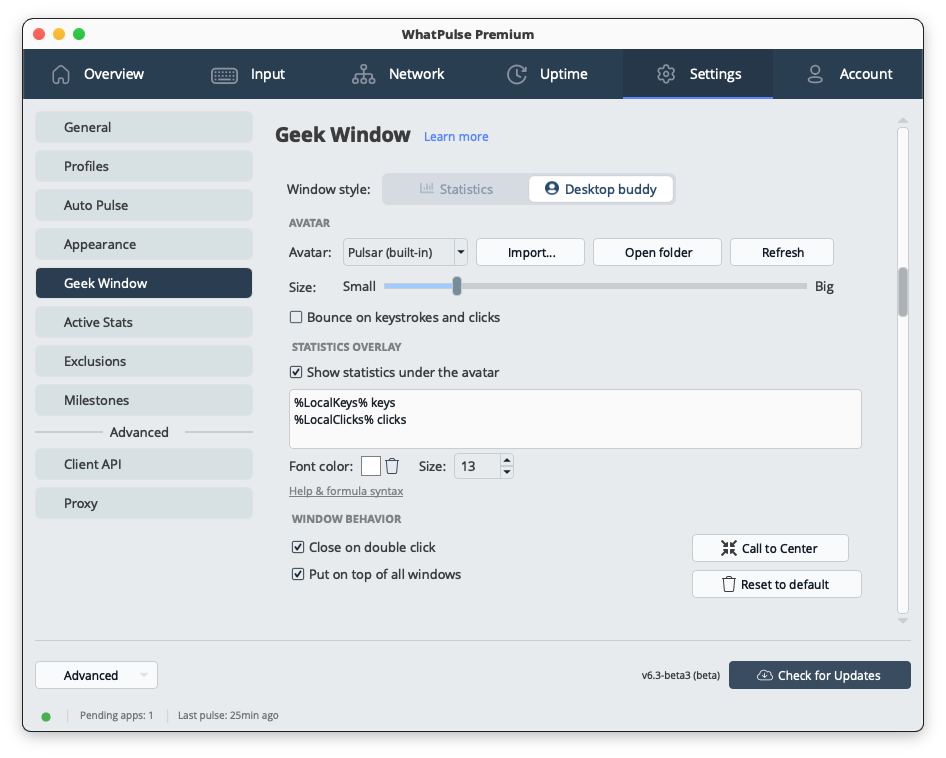
The Desktop buddy panel has three sections:
Avatar
- Avatar: choose Pulsar (built-in) or one of your own avatar packs.
- Size: a slider from small to big.
- Bounce on keystrokes and clicks: on by default. When disabled, only a very subtle motion smooths the image transitions.
Statistics overlay
- Show statistics under the avatar: toggles the small stats line underneath.
- The text field controls what the line shows. It uses the same variables and formulas as the classic Geek Window; the default is
%LocalKeys% keys | %LocalClicks% clicks. See Geek Window formulas for the full syntax. - Font color and size for the stats line.
Window behavior
- Close on double click and Put on top of all windows, shared with the classic Geek Window.
- Call to Center brings the avatar back to the middle of your screen if you lost it.
Custom avatar packs
You can replace Pulsar's artwork with your own. An avatar pack is simply a folder of conventionally named images:
| Image name | Required | Shown when |
|---|---|---|
idle | Yes | resting |
typing-left | No | left hand down |
typing-right | No | right hand down |
typing-both | No | both hands down (fast typing) |
mouse-click | No | clicking the mouse |
sleeping | No | asleep after being idle |
surprised | No | startled by rapid input |
celebrating | No | shown briefly after a successful pulse |
Supported formats are PNG (recommended), GIF, JPG, WebP, and BMP. Use a square image with a transparent background, at least 512x512. Only idle is required: any missing image falls back to your idle image, so a single picture already gives you a working buddy.
Adding a pack
There are two ways:
- Import a .zip: click Import... next to the Avatar dropdown and pick a
.zipfile containing the images. The pack needs at least anidleimage. - Build it by hand: click Open folder to open the avatars folder. WhatPulse drops a
README.txtthere explaining the naming convention. Create a subfolder named after your pack (for exampleavatars/my-buddy/), put your images in it, then click Refresh in the settings to reload the list.
Pick your pack from the Avatar dropdown and it is applied to the live window immediately. After editing images on disk, hit Refresh to see the changes.