

WhatPulse 7.0 is the biggest release since the app was first written. The app has been restructured from one program into two, and that change touches almost everything: how your stats are counted, how the window gets its data, how updates are installed and everything else. Most of it is invisible when everything works, which is exactly the point.
Around that new foundation, 7.0 brings a new sidebar navigation, league standings on the Overview page, an in-app feedback window, better application recognition, a universal macOS build, a big round of Linux work, accessibility improvements, and a long list of fixes. It went through six public betas (a new record), and the feedback from beta testers shaped a large part of this release. Thank you to everyone who tested it.
Counting and the window, finally apart
Until now, WhatPulse was a single program. The code that counts your keystrokes and the code that draws your charts lived in the same process and went down together. If the window hit a bug, counting stopped. If the counting side was busy, for example processing a flood of network packets, the whole app felt it.
7.0 splits that into two:
- The collector is a small background process that does all the counting: keys, clicks, mouse distance, uptime, application and window title tracking, network traffic, browser extension traffic, pulsing, backups and uploads. It starts when you log in and runs without a window or Dock icon.
- The app is the window you already know: the pages, charts, heatmaps, tray popup, Geek Window and settings. It reads your statistics directly and talks to the collector for everything else.
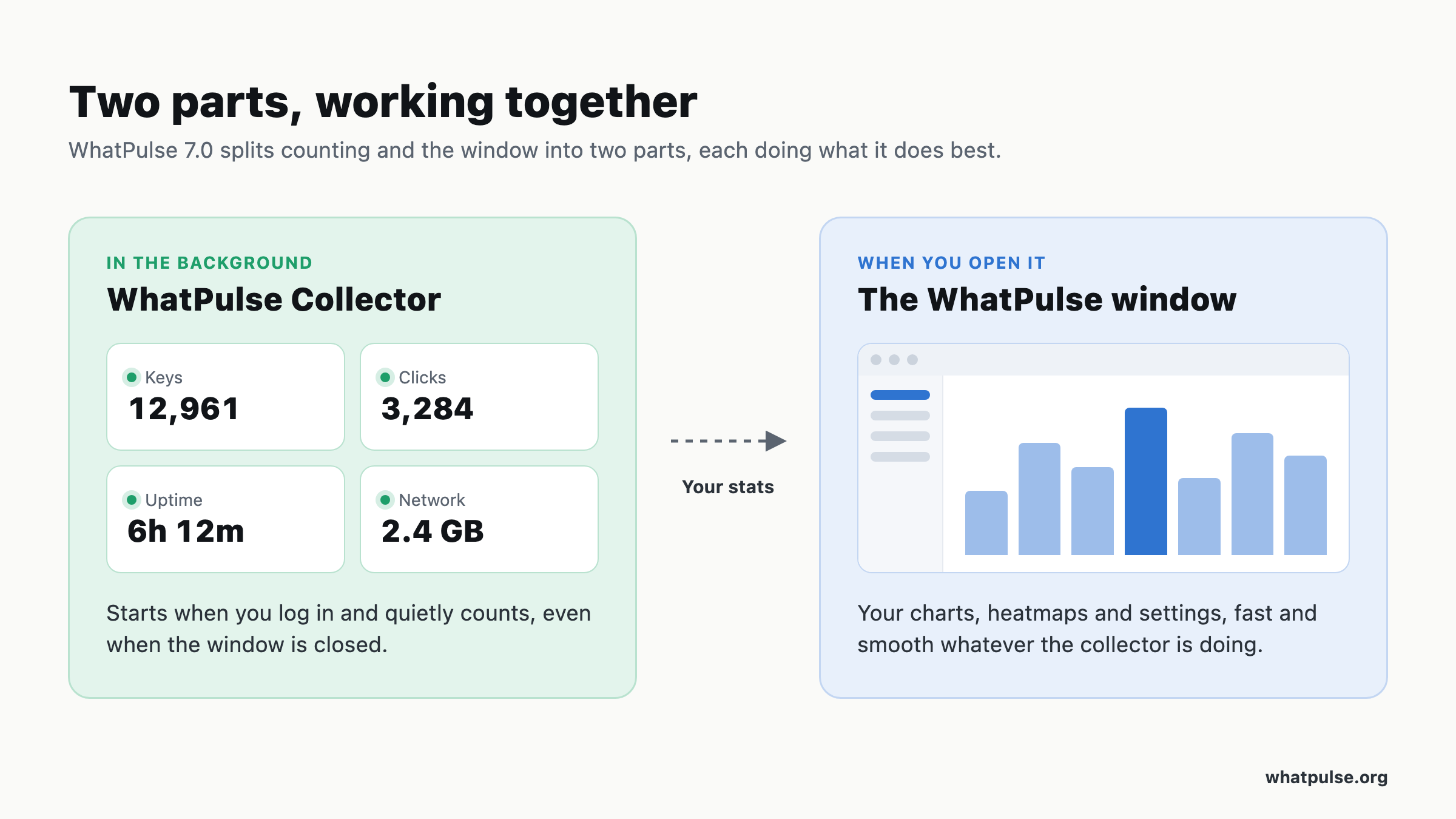
What this means day to day:
- A busy collector no longer slows down the window. Heavy work in the collector, like counting a lot of network packets, exporting data, can no longer make the interface sluggish, and the window itself is a lot snappier - you'll definitely notice this.
- Updates are atomic. Quicker and more reliable updates, with full rollback if anything fails. macOS and Linux ship both inside the same package.
- Tools built on the Client API keep working. The local Client API and the browser extension connection are now served by the collector, on the same ports and settings as before, nothing has changed there.
- Your database is safer. The database now uses a journaling mode that lets the app read while the collector writes, and online backups are taken as consistent snapshots of the live database.
If you're looking, you will see two entries in Activity Monitor or Task Manager: WhatPulse and WhatPulse Collector. Both are expected, and on Windows the collector shows up with a proper name and icon.
macOS: a one-time permission prompt
macOS ties Input Monitoring and Accessibility permissions to a specific program. The collector is a new program, so the permission you granted WhatPulse before does not carry over. After updating, macOS prompts you once to allow the collector. WhatPulse walks you through it and keeps counting uptime and network traffic while you do. Once granted, the permission sticks across future updates. Screen readers now announce when a permission is granted.
Linux: network capture permission
Network monitoring now runs in the collector. If you used setcap to give WhatPulse permission to capture network traffic, grant it to whatpulse-collector instead. This is only needed when you're not running the AppImage or Flatpak, and use an extracted WhatPulse binary.
A new sidebar navigation
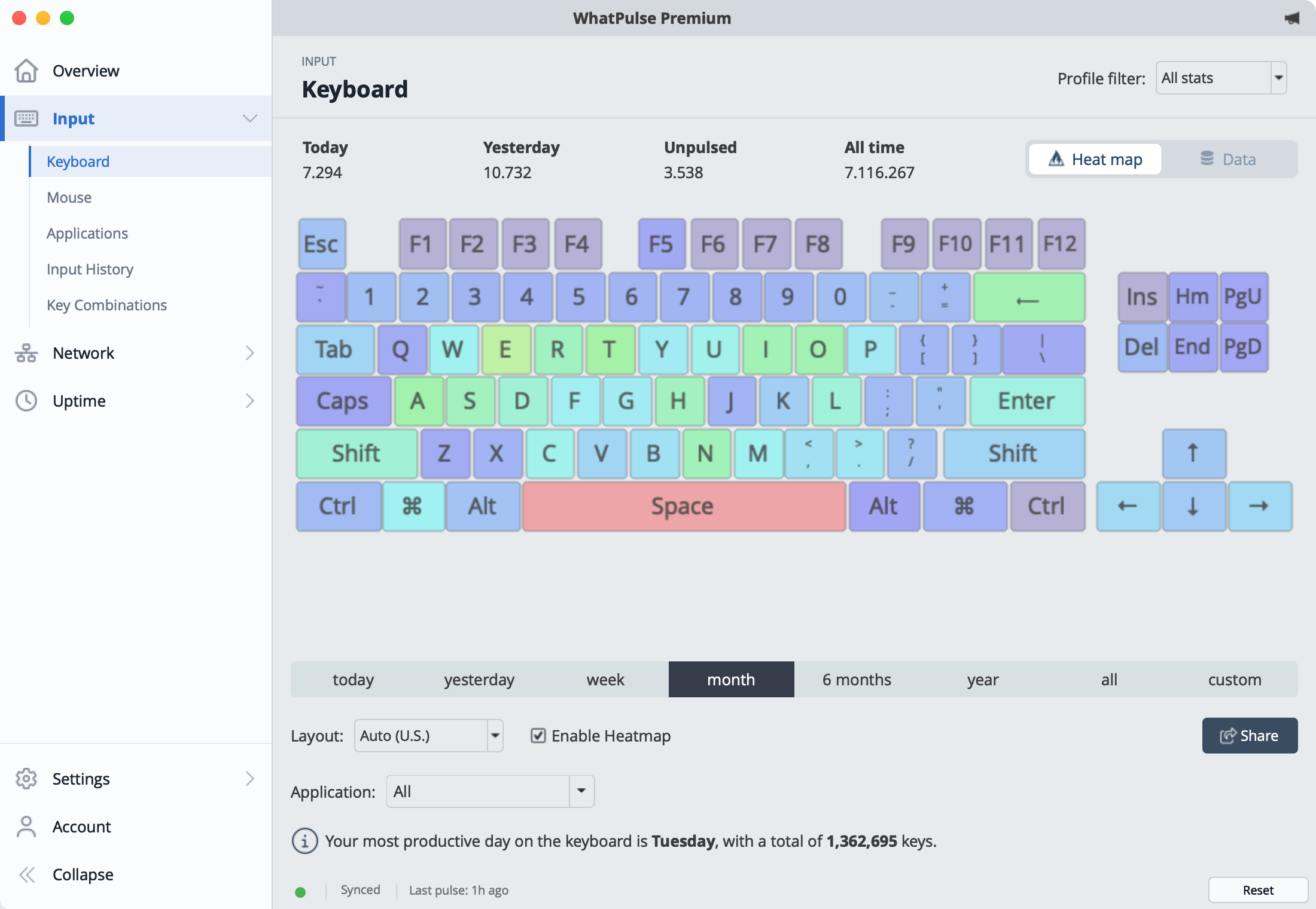
The old top navigation bar and the separate tab strips on each page are replaced by one sidebar on the left. Every page and its sub-pages sit in one tree, so getting from Input > Keyboard to Network > Interfaces is one click instead of two.
- Collapsible. Shrink the sidebar to a slim icon rail to give your charts more room. Hover an icon to reveal its sub-pages, and WhatPulse remembers whether you left it collapsed.
- One Applications page. Uptime > Applications and Uptime > Application Activity are now one page, with an Activity / Data toggle to switch between the 24-hour activity graph and the per-application list. WhatPulse remembers which view you picked.
- Prefer the old layout? The classic top navigation is still there under Settings > Appearance > Navigation.
League standings on the Overview page
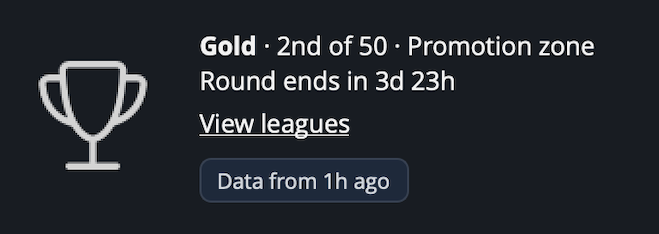
If you're taking part in the Leagues, your standing is now right on the Overview page: your division, your rank, which zone you're in, and how much time is left in the round. Near the end of a round, when scores are hidden, it says so. Click the block to open the full leaderboard on the website.
The Geek Window gets matching league variables, so you can put your division, rank or zone in your own layout.
Send feedback from inside the app
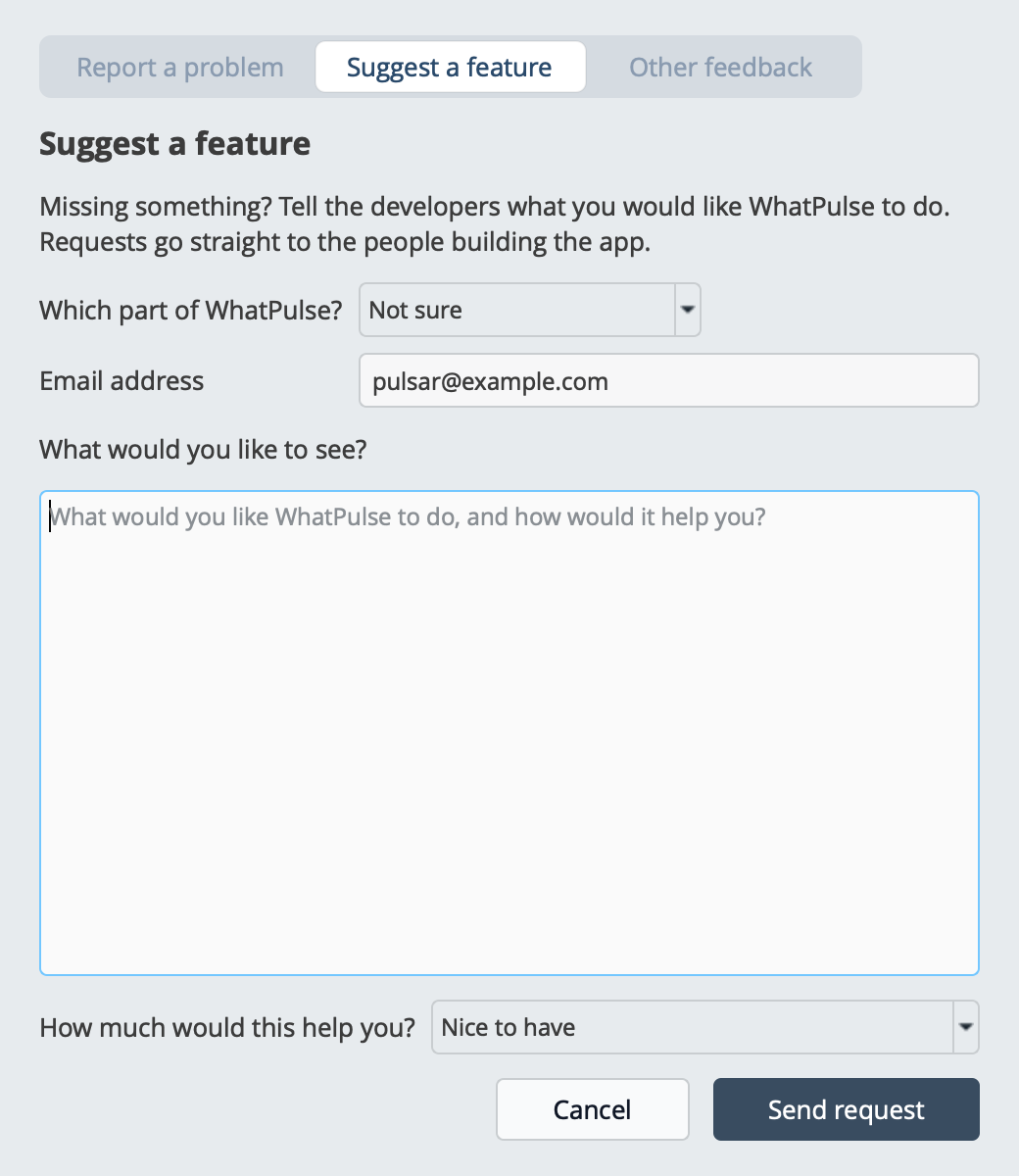
For a long time, the only way to get diagnostics to us was finding log files by hand and attaching them to an email. 7.0 adds a feedback window, reachable from a new icon in the title bar while you're logged in, and from Settings > Advanced > Report a problem.
- Report a problem. Describe what happened and optionally attach your logs and statistics database. WhatPulse packages them and uploads them to a support session tied to your account, so we can look at the actual data instead of guessing.
- Suggest a feature. Tell us what you'd like to see and how much it matters to you. Opening the window from the title bar preselects the page you were on.
- Other feedback. For everything else.
Better application recognition
Many applications, games in particular, have generic file names like game.exe or launcher.exe and no publisher information. The website could only match these by name, so unrelated apps were merged into one entry. WhatPulse now also sends what identifies an app more precisely:
- Windows: the publisher from the app's digital signature.
- macOS: the developer's Team ID from the app's signature, so Mac App Store apps are no longer all attributed to Apple.
- Games: the store and store ID for games installed through Steam, the Epic Games Store, GOG or the Microsoft Store.
Applications you already use are updated once in the background.
Cleaner window title lists
Window title tracking, new in 6.3, had one weak spot: applications whose title changes constantly. A game showing its FPS, a media player counting seconds, a download showing a percentage, or a chat app with an unread count each produced a brand-new title every time the number changed, cluttering your lists and growing the database.
WhatPulse now recognizes these volatile titles on its own, by watching how a title changes over time instead of using a fixed list of patterns, and records them under one stable entry. Genuinely different titles, like switching between numbered tabs, are left alone. Learned patterns are remembered across restarts, and a slow background cleanup folds titles recorded before this update into the same entries over the coming weeks.
A fresh look
- One icon set. WhatPulse had collected icons from several sources over the years. They are now all replaced by one consistent icon family across the Overview page, the sidebar, every settings page and the title bar. Sharper at any display scaling, and consistent in weight and size.
- A new installer look. The installer follows your system's light or dark mode, and it's a lot prettier. On macOS, the disk image has a clear background with instructions, and the installer is called Install WhatPulse.
- Small touches. The title bar is slightly darker than the window body, message banners use their full width, and the Advanced settings menu is sorted alphabetically.
macOS
- One universal build. WhatPulse for macOS used to ship as two builds. There is now one universal build that runs natively on Intel and Apple Silicon. The installer and the maintenance tool run natively on Apple Silicon too, instead of under Rosetta. If you had the Apple Silicon build, you are moved onto the universal one automatically through the normal update.
- Reopening the app. Launching WhatPulse from the Dock, Finder, Spotlight, Launchpad or a launcher like Raycast while it is already running now opens the main window.
Windows
- Launch on startup, always available. Launch when computer starts was missing from Settings > General for some users, mostly on all-users installs or after switching install types. A leftover entry from older installers hid the setting and could stop WhatPulse from starting at all. The setting is now always shown and always under your control. On all-users installs, every account keeps starting WhatPulse at sign-in after updating.
- Task Manager startup toggle. If you turn WhatPulse off under Startup apps in Task Manager, the checkbox in WhatPulse reflects that, and ticking it again turns startup back on in Task Manager too.
- Windows 10 windows. Square corners no longer poke out past the rounded window frame, the main window no longer opens with its right and bottom edges cut off, and the thin gray line along the bottom edge of windows is gone.
- High DPI override. If the "Override high DPI scaling behavior" compatibility setting was enabled on WhatPulse.exe, the tray popup opened in the wrong place on scaled displays. WhatPulse now detects the setting and tells you how to turn it off.
- Installer elevation. If you decline or cancel the administrator prompt, the installer offers to try again or stop, instead of showing a dialog that could be unresponsive.
Linux
7.0 includes the largest batch of Linux work in a long time.
- AppImage updates now replace the installed version and restart WhatPulse, instead of leaving the old version running, and update checks no longer stop working until a restart. The beta channel works on Linux too.
- Flatpak no longer starts without a tray icon or window on KDE Plasma and GNOME.
- Desktop integration. The WhatPulse window is grouped with its launcher in the dock. The AppImage follows a light GNOME desktop instead of starting dark, and the tray icon is visible on a dark top bar. Removing WhatPulse from your startup applications also stops data collection at login.
- Network. IPv6 traffic is attributed to the right application.
- Wayland. Native apps no longer disappear from application uptime when an XWayland app such as Steam is open, and the sidebar flyout opens next to the sidebar instead of mid-window.
- Hardware. Processors and graphics cards are now detected.
- Sleep detection. Sleep and wake are detected through the system's power management, so counting pauses correctly when you suspend.
- Crash reporting is now available on Linux, with the same opt-out as Windows and macOS.
- Smaller packages. Unused database drivers are no longer included.
Accessibility
- The tray popup is now fully operable with the keyboard: Tab and the arrow keys move between controls, Space and Enter activate, Esc closes. Every control has a proper name for screen readers like VoiceOver and NVDA, and the pause control announces what it will do ("Pause tracking" / "Resume tracking").
- On macOS, a right-click or Ctrl-click on the tray icon opens a native menu, which VoiceOver users can reach with VO+Shift+M. The native menu also has a Pause/Resume tracking action, on macOS and Linux.
- The interface has been fully tested with VoiceOver and NVDA.
Fixes
- Mouse heatmap retention. The "Prune older than 3 months" checkbox on Input > Mouse did not stop the pruning; heatmap data older than three months was removed regardless. It is now honored. This bug dates back to when the setting was introduced.
- Tray popup double counting. The Today and Week views added everything since your last pulse on top of totals that already included it. They now match the Overview page.
- Deleted profiles counted twice. Deleting a profile copied its stats to General but left the originals behind, so the combined view counted them twice. Existing duplicates are repaired automatically.
- Total uptime. Total uptime on the computer uptime page was calculated from boot times reported by the system. A wrong system date at any point skewed it permanently. It now sums the uptime WhatPulse counted itself, matches the chart and respects the profile filter. The separate "longest uptime" value is removed.
- Geek Window labels. A label added from the settings could disappear on the next save, or several new labels could end up sharing one entry so that editing one changed another. Labels are now stored correctly, keep the position you dropped them at, and the layout is saved in one go.
- Network attribution. On machines with two or more active network adapters, traffic could be attributed to the wrong address, port or direction. On dual-stack connections, IPv4 and IPv6 traffic could be merged. Both are fixed.
- Website icons. A site's icon address pointing at an endless stream, such as an internet radio feed, could keep a connection open and slowly use memory. Icon downloads now check the response up front, cap their size and give up after a deadline.
- Crashes. A long list of crash fixes, most found through crash reports during the beta: when closing, quitting or switching theme or language while a heatmap was loading; when resizing a large mouse heatmap mid-generation; memory corruption in Windows input capture; the Geek Window refreshing while a pulse arrived; looking up running processes on Windows; and several rare crashes during shutdown. We also reduced how often a Windows time zone bug seen on some Windows 11 systems could crash WhatPulse.
Privacy and security
- Crash reporting on every platform. Crash reports were Windows-only. macOS and Linux now send them too. This follows the Send bug and usage reports setting in Settings > General, and reports never include what you type, window titles or application names.
- Scrubbed diagnostics. Log lines sent with crash reports are scrubbed of web addresses, home folder paths, e-mail addresses and text values from database queries before they leave your machine.
- Stricter connections. Online database backups fail on any certificate error instead of ignoring it, and website icon redirects to local network addresses are refused.
- Tighter boundaries. The Windows update helper only touches files inside the WhatPulse installation folder. The collector only accepts read-only queries from the window and only uploads the specific files it expects.
Before you update
- macOS: expect the one-time permission prompt for WhatPulse Collector.
- Linux: if you use
setcapfor network capture, apply it towhatpulse-collector. - Everyone: a backup never hurts. Premium members can use Account > Start Backup; everyone else can copy the WhatPulse data folder.
If anything looks off, the feedback button in the title bar is the fastest way to reach us, and it can attach the logs we need.
Happy pulsing!