
Until now, the WhatPulse API was mostly a personal thing. You created an API key, pointed a script or a dashboard at your own account, and that was that. Useful, but it stopped the moment you wanted to build something for other people.
That changes with OAuth applications. Any WhatPulse user can now sign in to your app, approve what it is allowed to see, and your app gets an access token to call the API on their behalf. It is the same authorization code flow you know from "Sign in with GitHub" or "Sign in with Google", so if you have done that before, you already know most of it.
What you can build with it
- A leaderboard for your community. Pull real pulses for your gaming clan or Discord server, no manual copy-pasting of stats.
- A team dashboard. See who has been typing the most this week. Or, more diplomatically, who has been busiest.
- A stats widget on your own website. Visitors sign in once and see their own numbers. No API key copying required.
- Anything else that needs someone's keys, clicks, uptime, download, or hourly time series without asking them for a key.
Personal API key or OAuth app?
Both still exist, and they solve different problems.
| Personal API key | OAuth application | |
|---|---|---|
| Whose data | Your own | Any user who authorizes your app |
| Good for | Scripts, a personal dashboard, one-off integrations | Products other WhatPulse users sign in to |
| What the user does | Nothing, it is you | Approves your app on the authorization screen |
| Token | One key, created on the API keys page | Access token plus refresh token, per user, valid for a year |
If you are only reading your own stats, keep using your API key. If other people will use what you are building, register an OAuth application.
How it works, in short
- Register an application. Open the API keys page in your WhatPulse account and select New application under OAuth applications. Give it a name your users will recognize, add a redirect URI, and pick a type: Confidential for server-side apps that can keep a secret, or Public (PKCE) for mobile, desktop, and single-page apps that cannot.
- Send the user to WhatPulse. Redirect to
https://whatpulse.org/oauth/authorizewith your client ID, redirect URI, and theuser-public-apiscope. - Exchange the code. The user lands back on your redirect URI with a code. POST it to
https://whatpulse.org/oauth/tokenand you get an access token and a refresh token. - Call the Web API. Use the bearer token to read that user's details, computers, profiles, pulses, and time series.
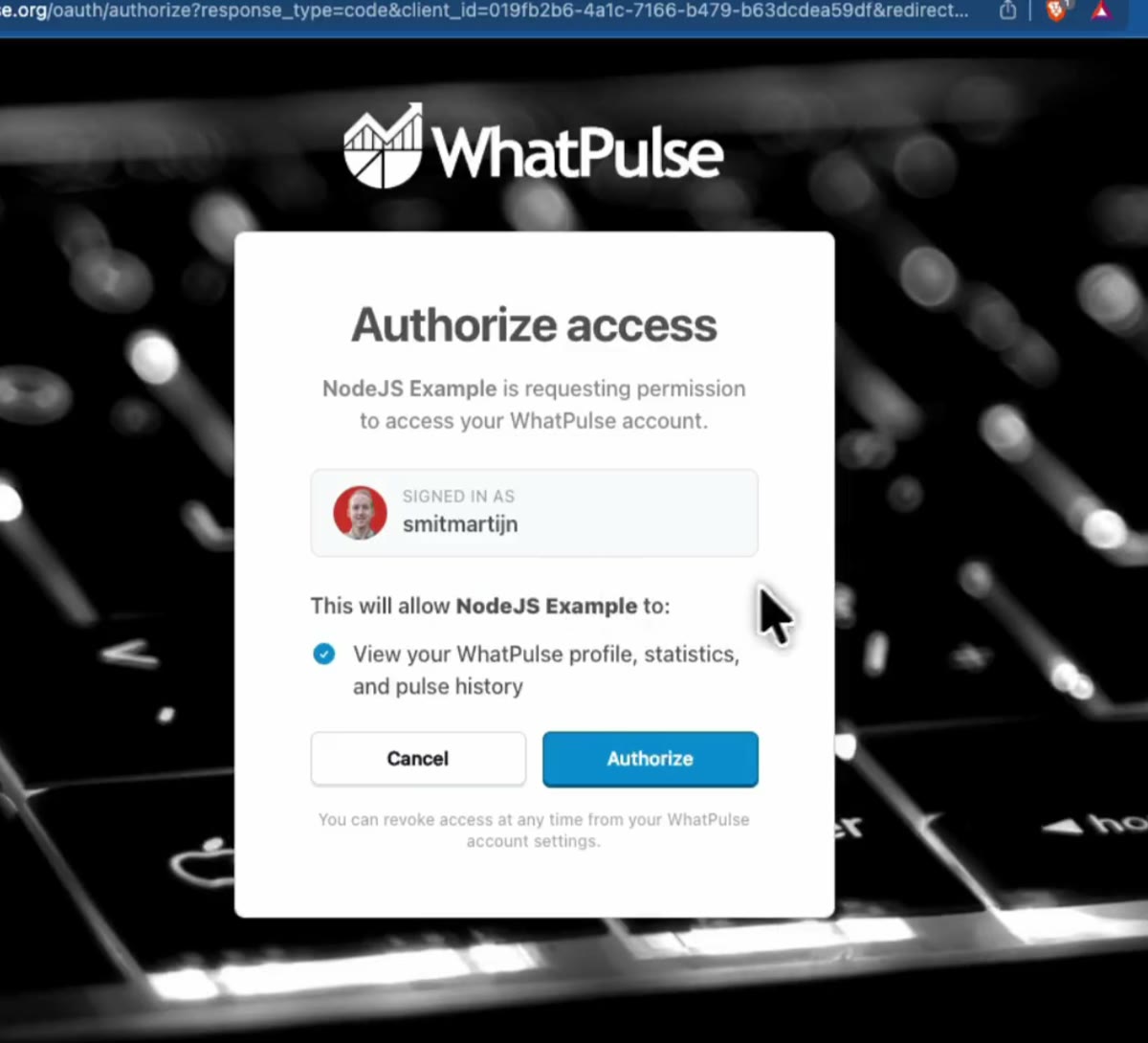
This is what your users see when they get to step 2:
The full parameter list, the PKCE variant, and the refresh flow are in the OAuth documentation.
Two demo apps to copy from
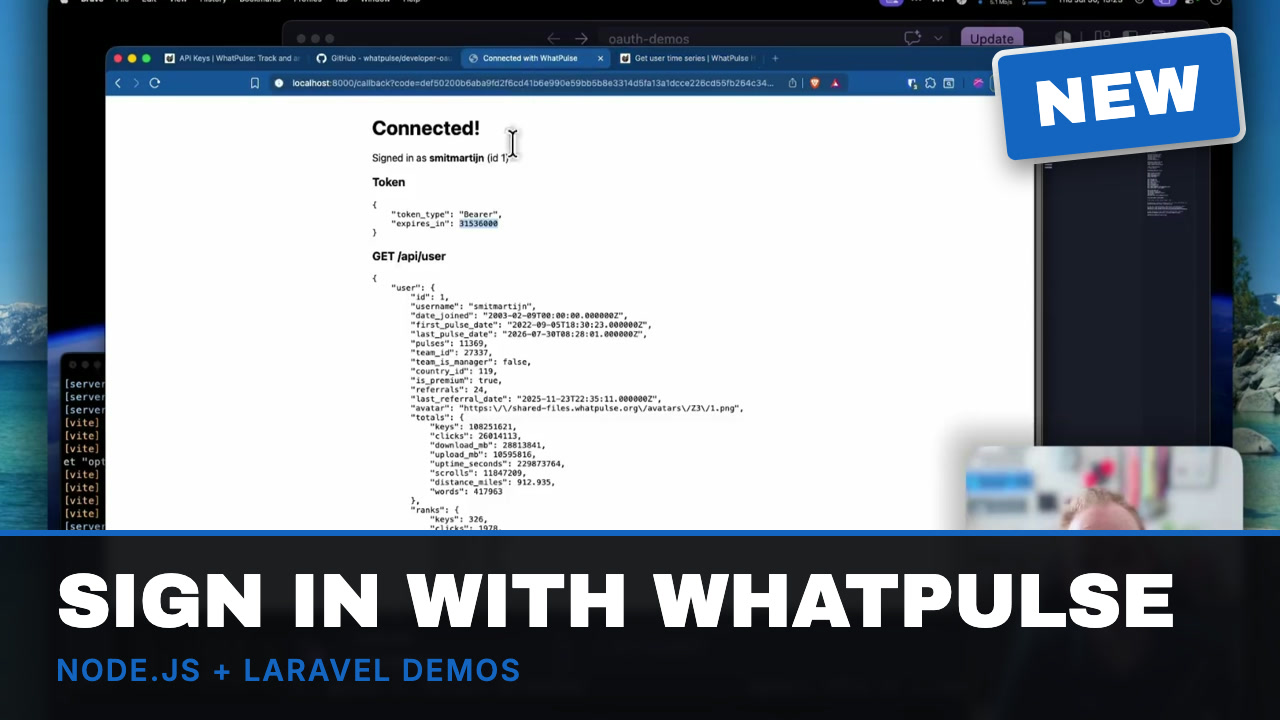
I did not want to leave you with just a doc page, so there are two bare-minimum example apps in a new repository: one in Node.js (Express) and one in Laravel. Each is a handful of files. Clone it, register an app, paste the client ID and secret into .env, run it, and click Connect with WhatPulse. You will see the authorization screen, get redirected back, and see your own profile JSON on the page.
👉 github.com/whatpulse/developer-oauth-demos
Both demos use a confidential client. The README in each folder has a short note on switching to PKCE for public apps.
Watch the walkthrough
The video goes through both demos end to end: where the redirect URI goes, what the consent screen looks like, what the callback does with the token, and where to find the rest of the API reference.
One thing that trips everyone up
The redirect URI you send has to match the registered one exactly, character for character. A stray trailing slash or http instead of https gets rejected before the sign-in screen even shows up. It is the first thing to check when it "just does not work".
Get started
- Register an OAuth application on your API keys page.
- Clone the demo apps or read the OAuth docs.
- Browse the Web API reference for everything you can read once a user has authorized you.
- Want a heads-up on future API changes? Join the developer mailing list.
Show me what you build
This is the part I am most curious about. If you make something with this, tell me on Discord or at support@whatpulse.org. If it is useful to other WhatPulse users, I would love to showcase it here on the blog and in the developer newsletter.
Happy building!