Window title tracking
Starting with WhatPulse 6.3, the app can break your statistics down by window title, not just by application. Instead of only knowing you spent two hours in your browser or editor, you can see which sites, documents, and windows made up those two hours - and how many keys, clicks, scrolls, and words went into each one.
Window title tracking is on by default. Everything is stored locally, and there is a dedicated privacy layer to control exactly what gets recorded.
Where you see window titles
Window titles show up in two places:
- Uptime > Applications: expand any application to see the window titles you spent the most time in, with their focus time and active time.
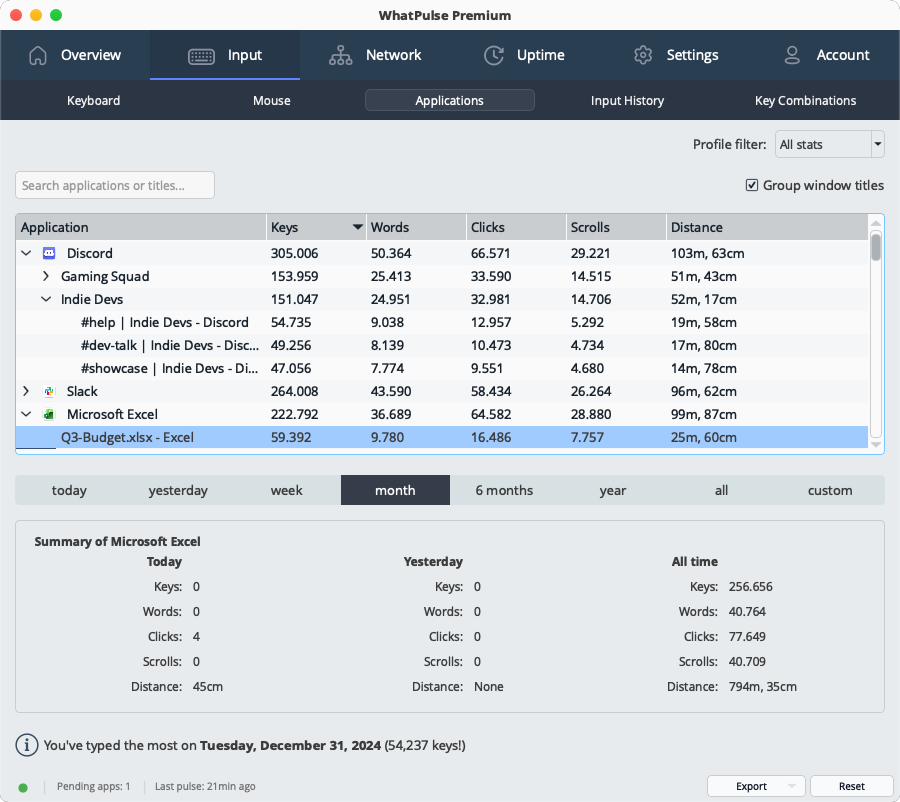
- Input > Applications: expand an application to see keys, words, clicks, scrolls, and distance per window title.
Click the arrow next to an application to expand it. The titles with the most activity are loaded first; click Show more... to load additional titles. If an application has no recorded titles for the selected time period, the row shows No window title data for this period.
Searching across all titles
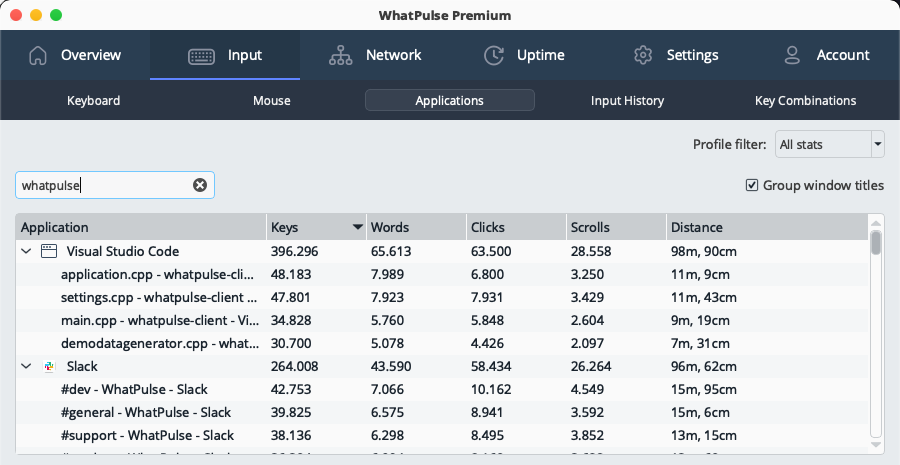
Both pages have a search box above the table (Filter applications and loaded titles... on Uptime, Search applications or titles... on Input). Searching looks through the window titles of all your applications at once, including apps you have not expanded. Applications with matching titles expand automatically and show only the matching titles, so a result never hides inside a collapsed row.
Search results are always shown as a flat list, even when grouping is enabled, so a matching title always shows up.
Group window titles into projects and workspaces
A single editor or chat app can fan out into dozens of title rows: one per file, one per channel, one per folder. To keep that readable, WhatPulse folds related titles into groups, such as VS Code workspaces or IDE projects. Each group shows summed totals, and you can expand it to see the individual titles inside.
- The Group window titles checkbox sits on both the Uptime and Input > Applications pages. It is one shared setting: toggling it on one page also changes the other.
- Grouping is computed on the fly when the page is displayed. It does not change how titles are stored, so turning it off shows the exact same flat list you had before, with no loss of detail.
- Alongside the built-in grouping logic, WhatPulse periodically downloads a small "title grouping pack" with tuned rules for popular applications. This refreshes automatically in the background. To fetch a fresh copy right away, use Settings > Advanced > Update window-title grouping packs.
If you find that a title is grouped incorrectly, or that a title should be grouped but isn't, please report it so we can improve the grouping packs for everyone.
Turning window title tracking on or off
The setting lives in Settings > Active Stats, in the Uptime column: Per Window Title. It is on by default, and one setting covers both the Uptime and Input pages.
Per Window Title requires Per Application (in the same Uptime column) to be enabled. If the checkbox appears disabled, turn on Per Application first.
Privacy
Window titles can contain personal information, so WhatPulse ships with privacy controls built in: exclude specific applications from title tracking, hide titles matching sensitive patterns, and automatic hiding of incognito and private browser windows. See Window title privacy for the details.