
WhatPulse 6.3 is built around one idea: more depth in application visibility, and giving you a faster, cleaner way to see it. The headline changes are window title tracking, a redesigned tray popup, and Pulsar - a fun new desktop avatar - alongside a tidied-up Settings screen and a substantial round of stability and correctness work.
See your time and input per window title
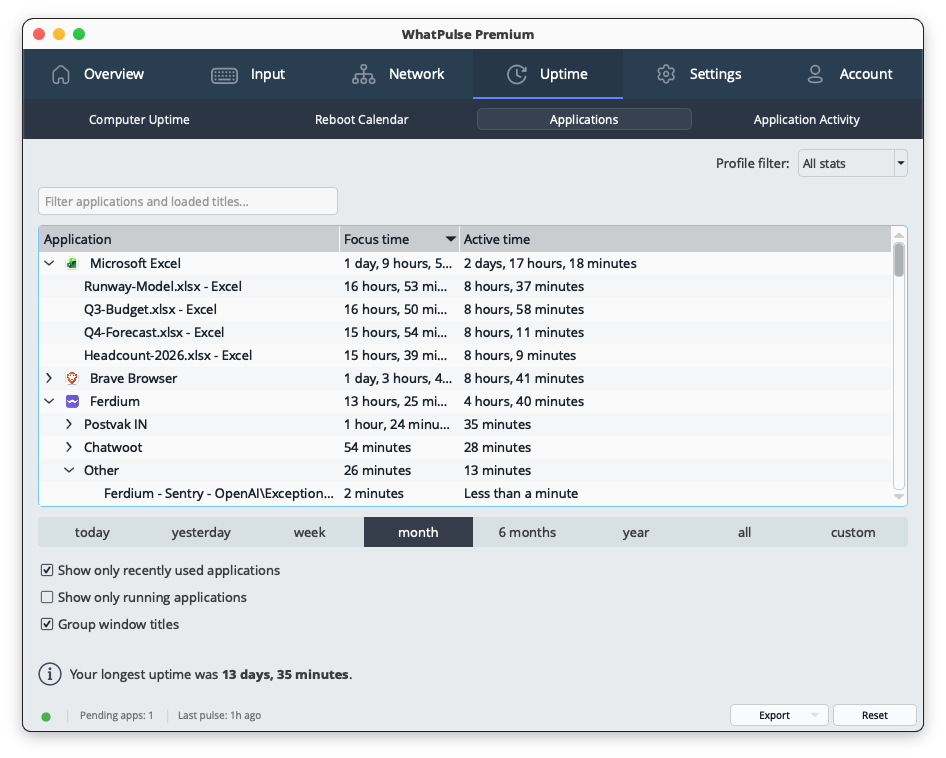
WhatPulse has always tracked how long you spend in each application. With 6.3 it goes one level deeper and tracks per window title, so you can see not just "2 hours in your Excel or IDE" but which sheets and projects made up those two hours - and the same for your input.
- Time and input per title. Your uptime is broken down by window title alongside the usual per-app totals, and keys, clicks, scrolls, distance, and words are attributed to the title they happened in.
- Expand and search. On the applications pages, click any app to reveal the titles you spent the most time in. A search box lets you find a title across all your apps at once - even ones you have not expanded - and your search stays put as the stats refresh in the background.
Privacy comes built in
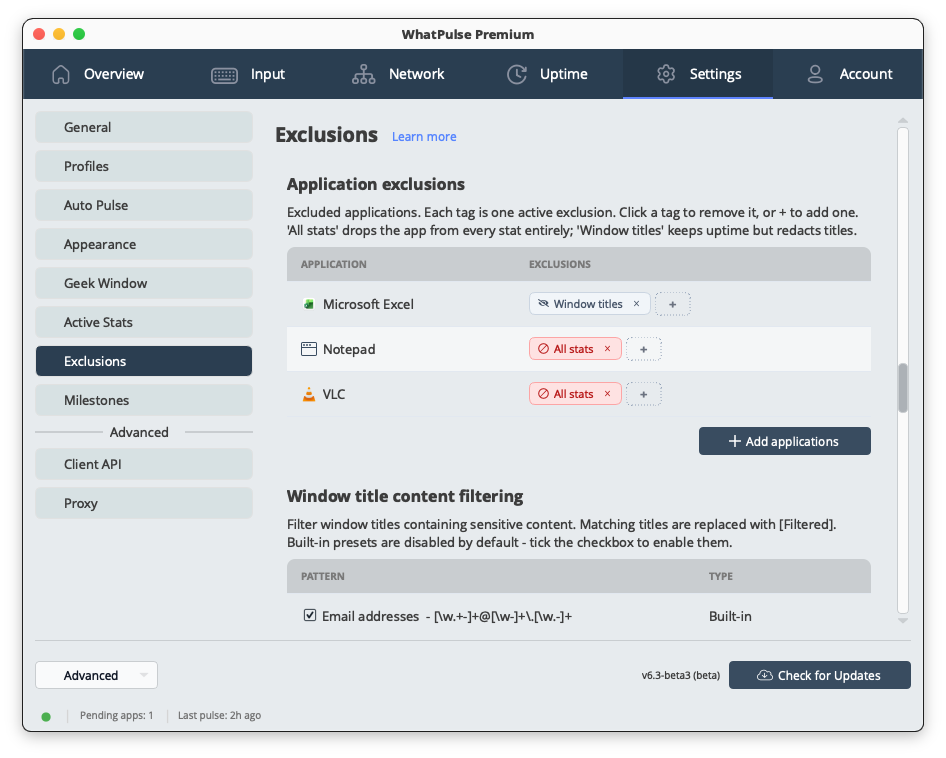
Window titles can contain things you would rather not record - email subjects, document names, private web addresses. That is exactly why 6.3 includes a dedicated privacy layer so you stay in control.
- Turn it off per app. Pick specific apps to leave out of title tracking. Their overall uptime keeps counting; only the titles are hidden.
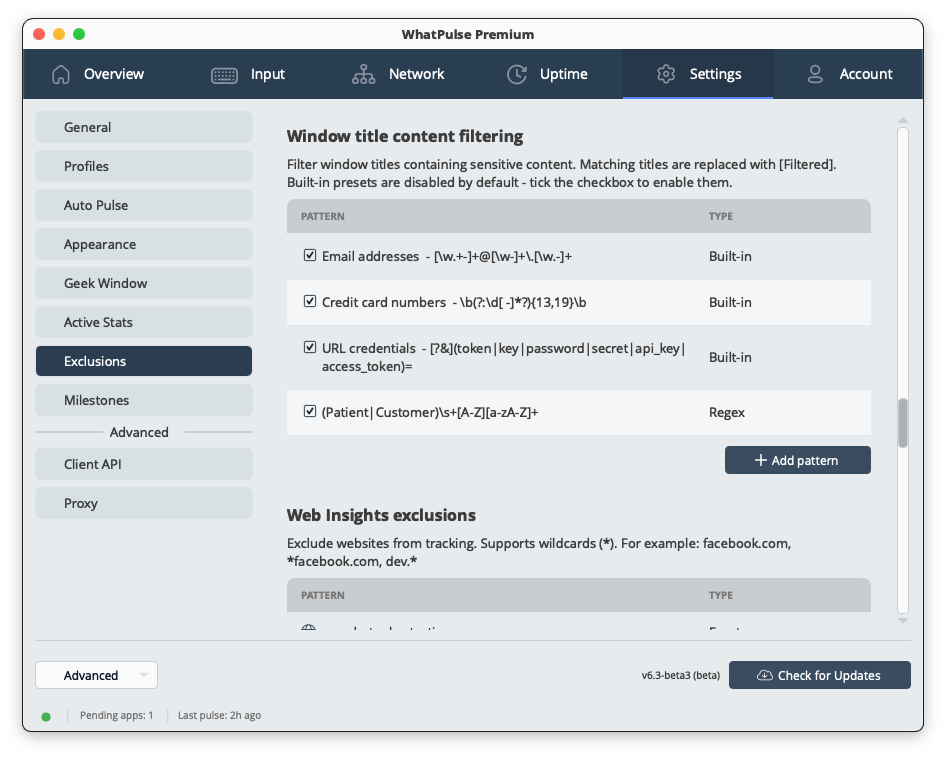
- Hide sensitive titles everywhere. Add words or patterns and any matching title is hidden before it is ever saved.
- Ready-made filters. Three filters are built in for emails, credit card numbers, and login details in web addresses.
- Incognito stays private. Titles from incognito and private windows are always hidden.
Grouping window titles into projects and workspaces
Per-title rows are powerful, but they can also be noisy. A single editor or chat app can fan out into dozens of rows - one per file, one per channel, one per Outlook folder. WhatPulse collapses those into meaningful groups.
- Projects, workspaces, services. VS Code groups by workspace, Qt Creator and JetBrains IDEs by project, Ferdium by service, Outlook by folder, and so on. Each group shows summed totals at the top, and you can expand it to see the individual titles inside.
- Tuned packs for popular apps. Alongside the built-in heuristic, WhatPulse downloads a small "title grouping pack" from our servers with tuned rules for popular apps. If you come across an app that is not grouped the way you want, you can submit a grouping request and we will add it to the next pack update.
- Search bypasses grouping. When you search, results stay flat so a matching title always shows up, regardless of which group it would belong to.
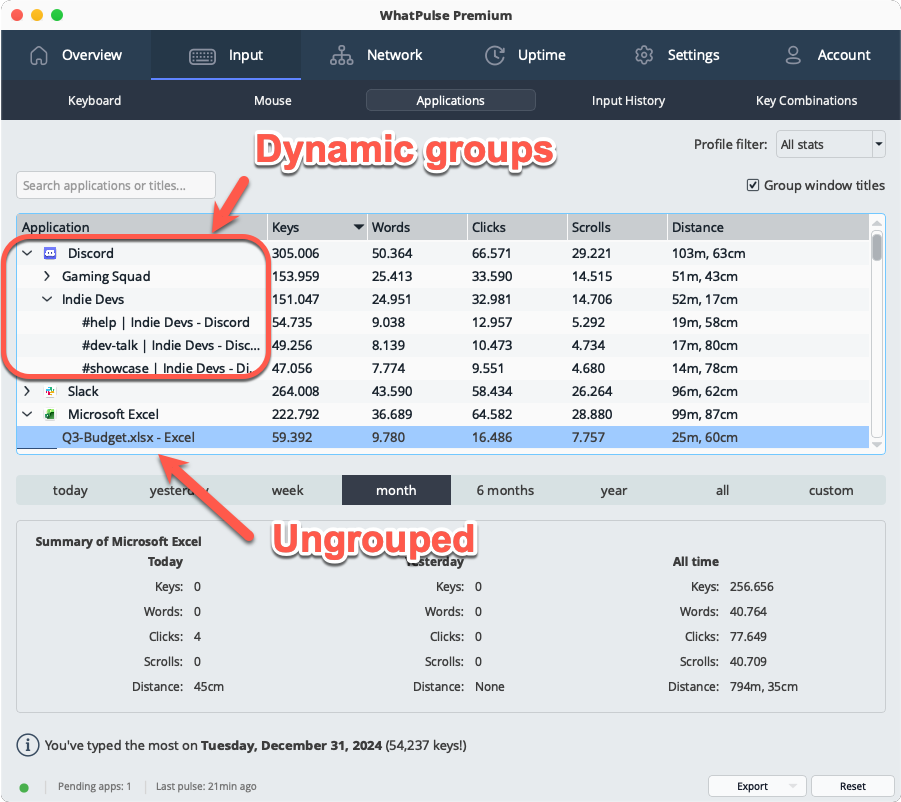
Grouping is on by default. If you prefer the flat list, the toggle is right on the page.
A more useful tray popup
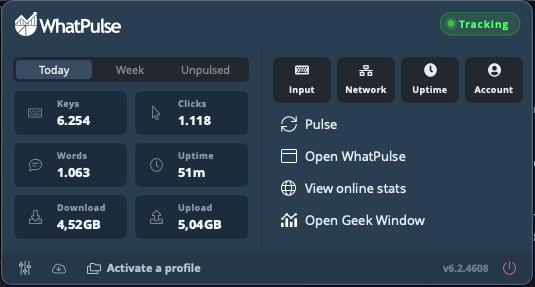
The old single-column tray menu has been replaced with a wider popup that reads as a quick stats dashboard rather than a long list of menu items.
- Stats at a glance. A grid of tiles shows your Keys, Clicks, Words, Uptime, Download, and Upload, with a Today / Week / Unpulsed switch. WhatPulse remembers which view you used last, so it opens where you left off. Uptime now adds up across all your profiles, not just the active one.
- Everything still here. The 'Tracking' button lets you pause and resume collection right from the top. Premium users get the profile selector, and there is a quick "Jump to" row for Input, Network, Uptime, and Account. Settings, check for updates, the version number, and Exit sit along the bottom.
Pulsar - a new style for the geek window
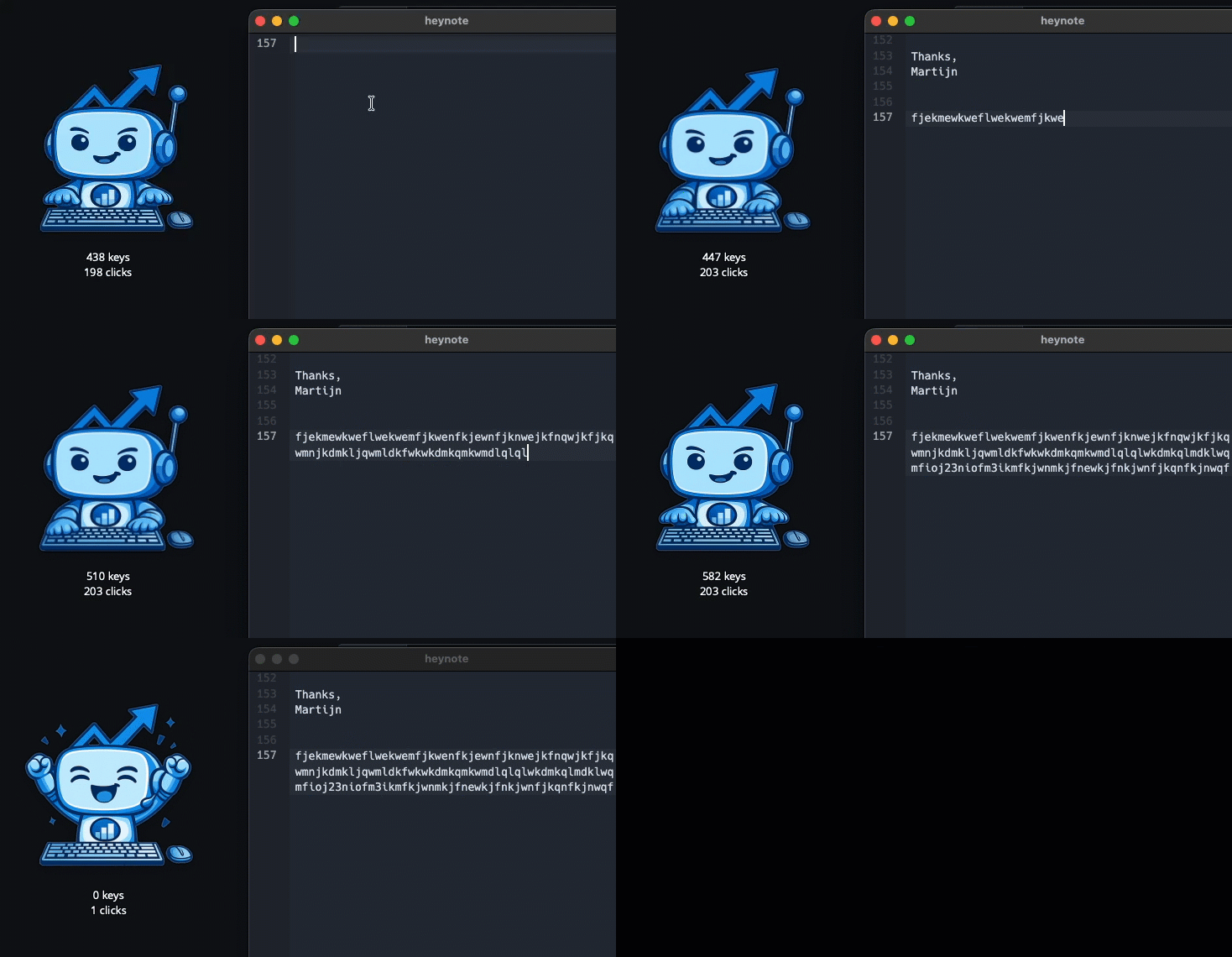
The geek window has always been a small floating panel with live stats. 6.3 adds an alternative style: a Bongo Cat inspired desktop avatar called Pulsar, sitting in front of a tiny keyboard.
- Reacts to you. Pulsar bounces on every keystroke and click, alternates hands on the keys, and breaks into a quick celebration after a successful pulse.
- Sleeps when you do. Idle for a while and Pulsar nods off; come back, and it wakes up.
- Configurable. Pick the avatar size and which behaviors are on, and choose what to show on the stats line underneath - keys, clicks, words, uptime, or whichever combination you prefer.
- Bring your own artwork. An avatar pack is a folder of conventionally named images - idle, typing frames, sleeping, celebrating, and so on. Only the idle image is required, so a single picture already makes a working buddy. Import a pack from a .zip file, or click "Open folder" to add images yourself (WhatPulse drops a README explaining the naming convention), then hit Refresh to reload your images live.
If you preferred the classic geek window, nothing changes - it is still the default.
Reset your profile when you lock your screen
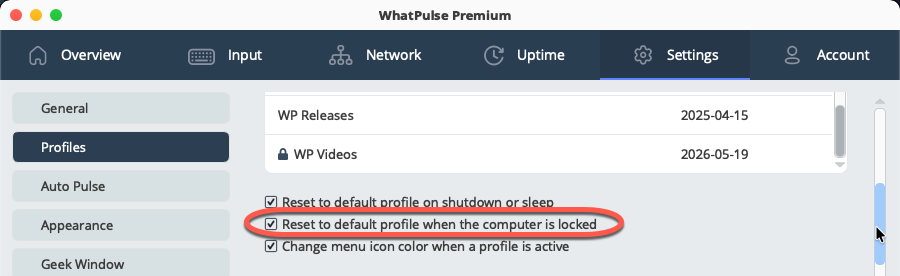
If you use profiles, WhatPulse can now switch you back to your default General profile the moment you lock your computer, so stepping away from your desk no longer leaves activity piling up under a work or game profile by mistake. It sits alongside the existing reset-on-shutdown and reset-on-sleep options and is on by default.
Other improvements, stability and fixes
6.3 also rounds things out with a batch of smaller improvements and a broad sweep of crashes and rough edges:
- A cleaner Settings screen. The exclusion and list screens throughout Settings now share one consistent design - app exclusions are a single list with a type picker, and network interfaces, Web Insights exclusions, window title filters, profiles, and milestones all use the same tidy, searchable table.
- See your update install. User-initiated updates now show a small progress window with a status line and progress bar, from download through install to restart. Automatic background updates stay silent, as they should.
- Correct keyboard heatmaps on non-QWERTY layouts. Layouts like AZERTY, QWERTZ, Dvorak, and Colemak now light up the right keys on both macOS and Windows, counted and drawn by the letter you actually type, with better auto-detection of punctuation-position letters, dead keys, and the number row. (QWERTY users are unaffected; the macOS change is forward-only.)
- Apps that never reached your online stats. Fixed apps - often newer ones - never appearing in your online profile despite being tracked locally. This sometimes happened when there are a lot of apps.
- Closing WhatPulse is now smoother and more reliable - sometimes the app would hang for a second or two, sometimes crashing on exit.
- Fixed stats silently freezing after a laptop woke from sleep: if your Wi-Fi adapter took a few seconds to reconnect, monitoring could stay stopped while the clock kept ticking. WhatPulse now keeps retrying until your connection is back.
- Fixed the Uptime page not showing new data on the "All" time period when the window was left open past midnight.
- The Input > Key combinations table now grows with the window instead of stopping at a fixed height.
- The milestones log no longer grows without bound; it keeps the last 100 records.
- WhatPulse is now available in Serbian, in both Cyrillic and Latin scripts (Settings > General > Language).
- Linux: fixed a crash that could happen when input devices (keyboards, mice, USB dongles) were unplugged, suspended, or disconnected, and a separate crash that hit every few hours of idle time as an internal watchdog slowly ran out of system resources.
- Linux builds now ship on Qt 6.9, bringing the Linux version up to date with the latest framework release.