
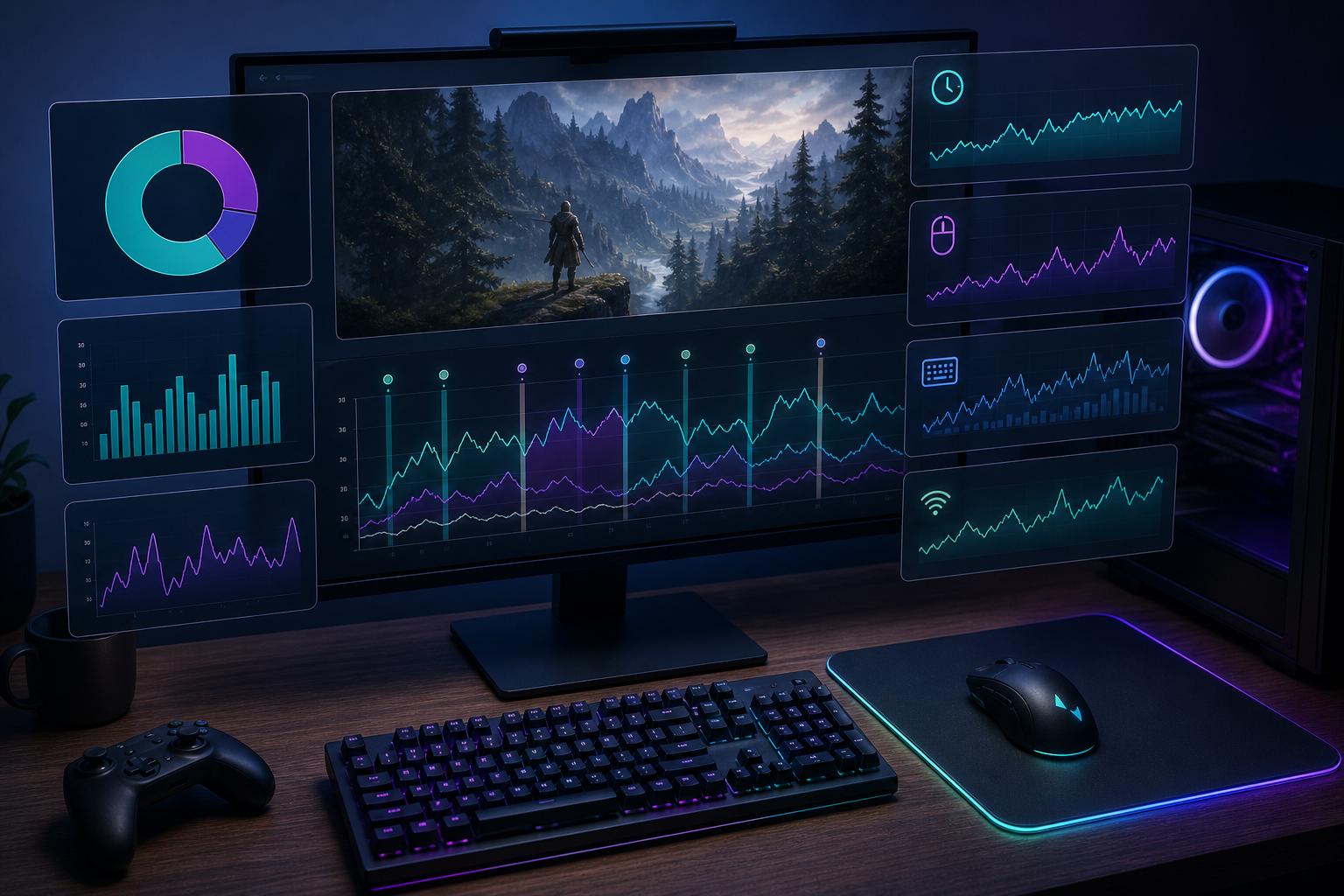
A gaming session tracker helps you measure when you play, how long sessions last, how active they are, and what patterns repeat across days or weeks. The useful version is simple: record play time, keyboard and mouse activity, network usage, and breaks, then review the trend instead of trusting memory. For gamers, that turns a vague feeling like "I played a lot this week" into numbers you can actually use.
The goal is not to make gaming feel like a spreadsheet. The goal is to understand your own rhythm: long raids, short competitive bursts, idle launcher time, late-night sessions, click-heavy games, and the difference between focused play and leaving a game open while doing something else.
What a gaming session tracker should measure
A good gaming session tracker measures more than a timer. A timer can tell you that a game was open for three hours. Activity data can tell you whether those three hours looked like an intense match night, a relaxed farming session, or a launcher sitting in the background.
For most players, the useful baseline includes:
- Session start and end time.
- Total active computer time during the session.
- Keyboard activity, including total keys and high-activity periods.
- Mouse clicks, movement, and scrolls.
- Application or window usage, measured as the actual game, launcher, voice chat, browser, and supporting tools.
- Website usage when guides, wikis, streams, or build planners are part of the session.
- Network usage for downloads, patches, cloud saves, and online play.
- Breaks, idle gaps, and time away from the keyboard.
WhatPulse is useful here because it already tracks personal computer activity across apps, input, uptime, network usage, websites, and trends. You can start with the general WhatPulse app, then compare gaming sessions against broader computer habits instead of treating game time as a separate island.
Gaming session tracker vs playtime counter
Most platforms already show some version of playtime. Steam, for example, exposes playtime in your library and account views, and its support documentation explains account and purchase history flows through Steam Help. Consoles and launchers often keep similar records.
That data helps, but it has limits. Platform playtime usually answers one question: how long was this game open? Activity-based tracking answers wider questions.
| Question | Playtime counter | Activity-based session tracking |
|---|---|---|
| How long was the game open? | Yes | Yes, if the app was detected |
| Was I actively playing? | Limited | Yes, through input and idle gaps |
| Did I spend time in guides or Discord? | No | Yes, through apps and websites |
| Were sessions clustered late at night? | Sometimes | Yes, through timelines |
| Which games create the most clicking or typing? | No | Yes, through input patterns |
| Did patches or downloads dominate the session? | No | Yes, through network usage |
The difference matters. A three-hour strategy game session may include long planning pauses and wiki research. A one-hour shooter session may contain more clicks and mouse movement than the rest of the day. Both count as gaming, but they feel different because they create different activity patterns.
How to set up a practical gaming session tracker
Start with a lightweight setup. If the system requires manual logging after every match, it will probably collapse faster than a glass-cannon build in a lag spike.
1. Define what counts as a gaming session
Pick a rule before looking at the data. A session could be:
- Any period where a game executable is the main active app.
- Any block where a game, launcher, voice chat, and related browser tabs appear together.
- Any evening block where gaming activity dominates keyboard, mouse, and network usage.
Consistency matters. If you change the rule every week, the trend becomes decorative.
2. Track the game and the surrounding tools
Gaming rarely happens inside one executable. A normal session might include the game, Steam or another launcher, Discord, a browser guide, a wiki, a map tool, capture software, and a music app.
Use application and website data as supporting context. WhatPulse can help you inspect which apps and websites were active during your computer time, while posts like How to Use a Computer Usage Tracker Without Overthinking It explain how to review that kind of data without turning it into a second hobby.
3. Separate active play from idle time
Idle time changes the story. Leaving a game open during dinner should not count the same as an hour of ranked matches. Look for gaps in keyboard and mouse activity, especially inside long sessions.
This is where input metrics earn their keep. Mouse clicks, key presses, scrolls, and movement can reveal whether the computer was being used or simply awake. For more on input-focused tracking, see Mouse and Keyboard Tracker: A Practical Setup Guide.
4. Review sessions weekly, not constantly
Daily review can become noisy. A weekly review gives patterns enough room to appear. Look at:
- Total gaming time by day.
- Longest session.
- Average session length.
- Sessions after midnight.
- Clicks and keys per session.
- Games or tools that dominate the week.
- Network spikes from downloads or updates.
- Breaks inside sessions longer than two hours.
Weekly review also keeps the data personal. You are not trying to meet an abstract standard. You are comparing this week against your own baseline.
A checklist for reviewing your gaming habits
Use this checklist when you review the last seven days:
- Did gaming sessions happen when I expected, or did they drift later?
- Which session had the highest keyboard and mouse activity?
- Did any game stay open while input activity was low?
- How much time went to launchers, guides, chat, or streams around the game?
- Did downloads or patches explain unusual network usage?
- Did sessions longer than two hours include real breaks?
- Did gaming crowd out another computer habit I care about?
- Was this week unusual because of an event, release, holiday, or LAN night?
The last question matters. Data without context invites silly conclusions. A launch weekend, tournament, new expansion, or visiting friend can make a week look extreme. Label those weeks mentally before using them as a baseline.
What the numbers can reveal
Gaming data gets interesting when you compare patterns instead of judging totals.
Click-heavy games vs keyboard-heavy games
Different genres create different input fingerprints. MOBAs, ARPGs, RTS games, and some shooters often produce high click counts. MMOs, chat-heavy games, and games with command input can increase keyboard activity. Turn-based games may show lower input density but longer sessions.
A mouse click statistics review can help you spot when one game dominates your weekly click count. Keyboard heatmaps can also show whether gaming keys are doing most of the work, which is handy if you care about keyboard wear, layout experiments, or ergonomic habits.
Multiplayer nights vs solo sessions
Multiplayer sessions often include voice chat, longer continuous blocks, and more consistent input. Solo sessions may include more pauses, guide usage, modding, browsing, or idle time. Neither pattern is better by default. They simply answer different social and attention needs.
If you use Discord or another chat app while gaming, treat it as part of the session context. That keeps you from undercounting the real computer routine around the game.
Downloads, patches, and network usage
Some gaming weeks are shaped by downloads rather than play. Large updates, reinstalling a game, cloud saves, texture packs, and mods can create network spikes. Network data helps explain why a quiet gaming day still moved a lot of data.
This is especially useful for households with data caps, shared connections, or multiple gaming PCs. Instead of guessing which machine caused a spike, compare network usage across computers and days.
Late sessions and sleep pressure
A gaming session tracker can show when play regularly moves past the time you intended to stop. That matters because late sessions often feel shorter in memory than they look in a timeline.
The World Health Organization physical activity guidance focuses on movement and sedentary time at a population level. Your tracker focuses on computer behavior. Use both sensibly: long sessions are easier to manage when you can see them and add breaks.
Privacy and control matter
Gaming data can be personal. It can show when you are home, what games you play, who you communicate with, and how your routines change over time. Keep your setup under your control.
Use tools that let you choose what to collect, what to publish, and what stays private. WhatPulse gives you local tracking plus account-level controls for what you share. For broader context, Microsoft documents how Windows handles activity history and privacy, and Apple documents controls for Screen Time on Mac. Those systems have different goals, but they reinforce the same principle: usage data should be visible and manageable by the person generating it.
If you share stats publicly, keep them aggregate. Total keys, clicks, uptime, and broad trends are usually safer than detailed app timelines or exact daily schedules.
Using WhatPulse for gaming session tracking
A simple WhatPulse gaming review can look like this:
- Open your dashboard after a week of normal play.
- Find the days with the highest computer activity.
- Check which games, launchers, websites, and tools were active around those periods.
- Compare input data: keys, clicks, scrolls, and mouse movement.
- Check network usage for large downloads or patches.
- Note idle gaps inside long sessions.
- Write down one observation, then stop.
That last step is deliberate. A review should produce one useful observation. For example:
- "My longest sessions start after 22:00."
- "Patch downloads explain most of Saturday's network spike."
- "The strategy game looks long, but half the session was idle."
- "Ranked nights create three times my normal click activity."
- "I use guides more than I thought during build testing."
Those observations help you decide what, if anything, to change. Maybe you add a break after long raids. Maybe you move downloads to a different time. Maybe you keep everything as-is and enjoy having the record. Data can be useful without becoming a scold.
Common mistakes to avoid
The first mistake is treating total time as the whole story. Total time matters, but it is blunt. Activity density, idle gaps, tools used, and time of day explain much more.
The second mistake is comparing yourself to strangers. Gaming habits depend on job schedules, school, family, genre, platform, and social groups. Your baseline is more useful than a random average.
The third mistake is over-tagging. If you try to classify every minute perfectly, the tracking habit becomes fragile. Use measurable signals first: apps, windows, input, websites, uptime, and network usage.
The fourth mistake is ignoring context. A vacation week, new release, illness, tournament, or seasonal event can skew the numbers. Label unusual weeks and move on.
Make the tracker serve the player
A gaming session tracker works best when it answers practical questions: when you play, how active sessions are, which games shape your input patterns, and what happens around the game itself. Start with a weekly review, keep the metrics simple, and compare your current habits against your own history.
If you already use WhatPulse, gaming sessions become another lens on your personal computer activity. If you are new, install the app, let it collect a normal week, and look for one pattern worth remembering. The win condition is clarity, not a perfect dashboard.