
A mouse and keyboard tracker helps you measure how your computer use actually behaves: keys pressed, mouse clicks, active sessions, application time, website time, and trends across days. The useful version is boring in the right way. It counts activity, keeps the data understandable, and gives you enough context to spot patterns without judging every minute of your day.
For WhatPulse users, the best setup starts with a simple question: what do you want to learn from your input habits? A gamer may care about click-heavy sessions. A developer may care about typing rhythm and long stretches inside an editor. A remote worker may care about whether meetings, browser tabs, and focused work leave different signals. The tracker is only helpful when the question comes first.
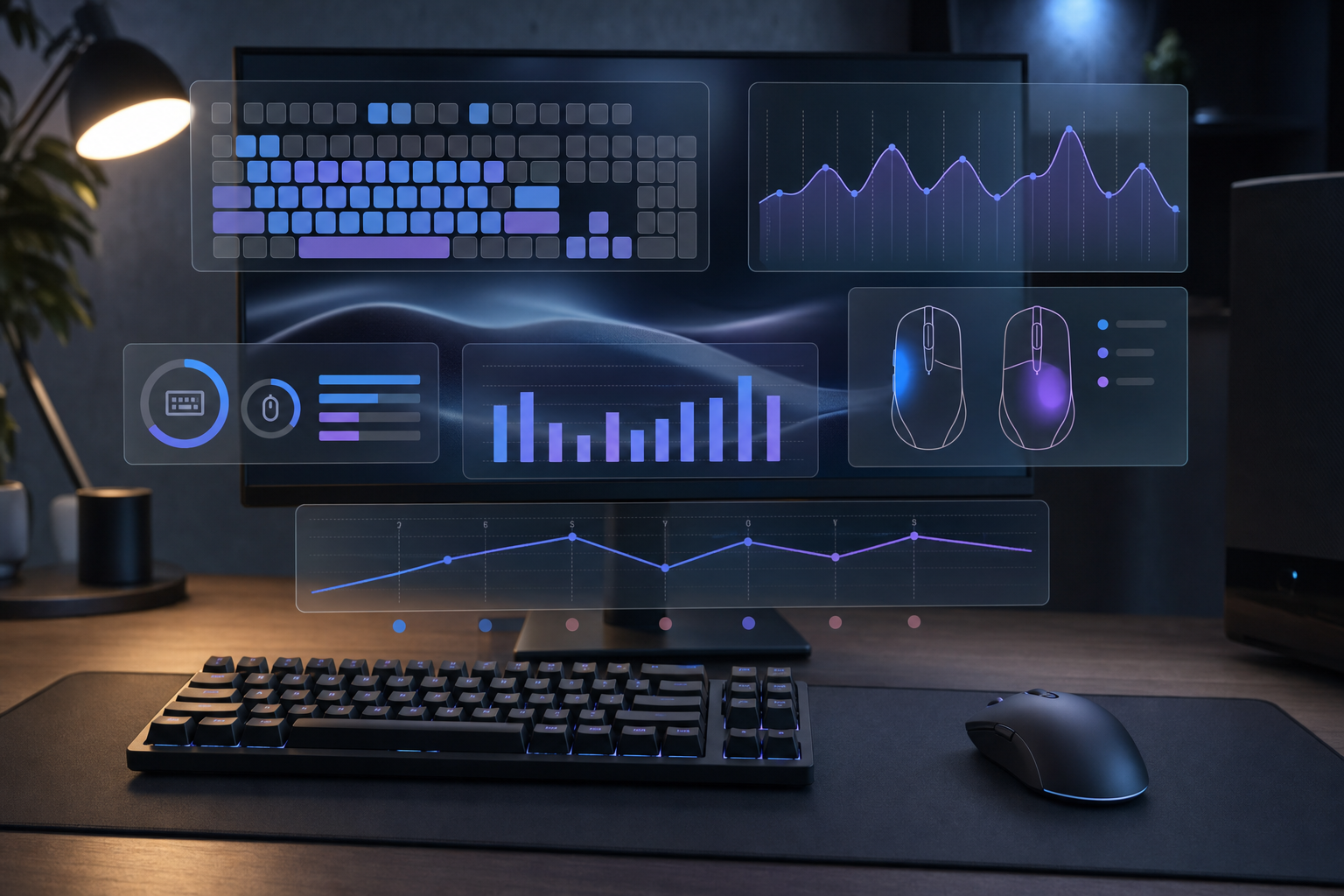
What a mouse and keyboard tracker should measure
A useful tracker separates raw input from interpretation. Raw input means counts and timestamps: how many keys you pressed, how many mouse clicks happened, when activity spiked, and how those numbers changed over time. Interpretation comes later, when you compare the numbers with applications, websites, uptime, and your own calendar.
The basics are straightforward:
- Keyboard activity: total keys, keys by day, typing bursts, and long term trends.
- Mouse activity: clicks, scrolls, distance, and sessions with high interaction.
- Time context: uptime, active periods, idle periods, and computer sessions.
- Work context: applications and websites that were active during those periods.
- Review context: daily, weekly, and monthly comparisons.
That context matters because input volume alone can mislead you. A day with fewer keystrokes may include deep reading, debugging, design review, or video calls. A day with many clicks may be intense gaming, spreadsheet cleanup, or navigating a clumsy internal tool. The tracker gives you evidence. You still supply the explanation.
WhatPulse fits this style because it combines input stats with broader computer usage views. You can start with the WhatPulse download, review your stats dashboard, and use exports later through the Export Wizard if you want to analyze your own data outside the app.
Choose the right tracking question first
Most people install a tracker and immediately collect more data than they can use. That is how dashboards become furniture. Pick one practical question, run the tracker for a week, then add more detail only when the first answer creates a better follow up.
| Goal | Primary signals to watch | Useful review period | What to avoid |
|---|---|---|---|
| Understand work rhythm | Keys, clicks, active time, application time | 7 to 14 days | Ranking days as good or bad from one number |
| Compare gaming sessions | Clicks, key bursts, uptime, application sessions | Per session plus weekly | Treating all games as the same interaction pattern |
| Improve typing setup | Key volume, repeated keys, keyboard heat patterns | 30 days | Assuming speed and comfort are identical |
| Audit distracting tools | Application time, website time, activity spikes | 7 days | Labeling every high use app as a problem |
| Build a personal dashboard | Daily totals, weekly trends, exports | 30 to 90 days | Tracking everything before defining decisions |
A good first question sounds like this: “Which parts of my computer day create the most input activity?” That question works for developers, gamers, writers, designers, and support teams. It keeps the focus on measurable activity instead of vague productivity theater.
A poor first question sounds like this: “Was I productive today?” That question asks a tracker to read your mind. Trackers count behavior. You decide whether that behavior matched the work you intended to do.
Set up WhatPulse for clean input data
Start with a normal week. Do not rearrange your habits for the tracker. If you change everything on day one, the first dataset measures your reaction to being measured. Very scientific, in the same way a cat walking across a keyboard is technically a writing process.
Use this setup checklist:
- Install WhatPulse on the computer you use most.
- Let it collect keyboard, mouse, application, website, uptime, and network data according to the settings you are comfortable with.
- Open the dashboard once per day for the first week, preferably at the same time.
- Write down one sentence about what kind of day it was: coding day, admin day, gaming night, meeting-heavy day, travel day, or low computer day.
- After seven days, compare the notes with the input numbers.
- Change one setting or review habit at a time.
This keeps the measurement honest. A week of real behavior is more useful than a perfect dashboard built around a day that will never happen again.
If you care about keyboard patterns, look beyond the total key count. Totals are fun, especially when they get absurd, but patterns carry more signal. Which days create typing bursts? Which applications show long active periods with low keyboard use? Do your highest key days line up with writing, coding, chat, or games?
If you care about mouse behavior, compare clicks with session context. The WhatPulse post on mouse click statistics covers the curiosity side of daily clicks. For setup, the key is to connect clicks with the activity that caused them. A thousand clicks inside a strategy game mean something different from a thousand clicks while fighting a slow admin panel.
Use input activity without overreading it
Mouse and keyboard data becomes useful when you treat it as a signal, not a verdict. A tracker can show that Wednesday had twice the clicks of Tuesday. It cannot know whether Wednesday was a stressful day, a great gaming session, a spreadsheet marathon, or a broken workflow with too many tiny buttons.
Use three layers when reviewing your data:
- Count: what changed in keys, clicks, scrolls, and active time?
- Context: which applications, websites, and sessions were involved?
- Cause: what do you remember doing, and what would you change next time?
That third layer prevents the common dashboard mistake: confusing precise numbers with precise explanations. Input activity is high resolution, but the meaning still depends on the work.
Read keyboard data for typing, coding, and chat
Keyboard tracking is most useful when you compare patterns across activities. Writing, coding, terminal work, messaging, and gaming all produce different rhythms. A developer may have long pauses while reading code, then dense typing bursts during implementation. A writer may have steadier key flow. A support worker may have frequent short bursts spread across many windows.
Review keyboard data with these questions:
- Which days have unusually high key counts?
- Do those days match known tasks, such as writing, coding, or chat-heavy support?
- Do high key periods cluster in the morning, afternoon, or evening?
- Are there low key days that were still important workdays?
- Does your keyboard activity change when you switch layouts, keyboards, or desk setups?
The point is to build a baseline. Once you know your normal range, unusual days become easier to spot. A sudden spike may be a deadline. A sudden drop may be meetings, travel, fatigue, or deep reading. The number starts the investigation.
Read mouse data for gaming, design, and workflow friction
Mouse data often reveals interaction style faster than keyboard data. Games, design tools, spreadsheets, and admin software can all produce heavy clicking. That does not make them equivalent. It means they deserve separate comparisons.
For gaming, compare sessions rather than whole days. A two hour session in a click-heavy game may dominate the daily total. That is fine if the question is about gaming habits. It is distracting if the question is work rhythm. Keep the review scope aligned with the activity.
For office work, high mouse activity can point to friction. If a process requires dozens of clicks for a repeated task, the tracker gives you a reason to improve the workflow. Maybe the fix is a shortcut. Maybe it is a saved view. Maybe it is admitting that one internal system was assembled by raccoons with a quarterly target.
Build a weekly review that stays lightweight
A mouse and keyboard tracker should not create homework. Review once a week, keep the questions stable, and write down the same few observations. The habit should take ten minutes.
Use this weekly review:
- Check total keys, clicks, active time, and uptime.
- Compare your highest activity day with your lowest activity day.
- Open application and website context for those days.
- Write one sentence explaining the difference.
- Pick one small change for the next week, or decide that no change is needed.
The “no change” option matters. Tracking should sometimes confirm that your setup already works. If every dashboard review creates a new rule, the tracker becomes a tiny manager living in your toolbar. Nobody requested that promotion.
When a mouse and keyboard tracker is worth using
Use a mouse and keyboard tracker when you want evidence about your computer habits, input patterns, gaming sessions, typing load, or workflow friction. Skip complex analysis until the basic weekly review teaches you something. The first win is not a giant dashboard. It is one moment where the data corrects a bad guess.
Start with a week of normal activity in WhatPulse. Review keys, clicks, active time, applications, and websites. Keep one practical question in focus. After that, decide whether to go deeper with exports, keyboard heat patterns, or longer trend comparisons.
The useful habit is simple: measure the behavior, add the context, then make one small decision. Your computer already leaves a trail of activity. A tracker turns that trail into something you can read.