

WhatPulse has been collecting your computer usage data for years. Keystrokes, mouse movements, application screen time, network bandwidth, website visits. All of it stored locally in a SQLite database on your machine. Until now, exploring that data meant opening the WhatPulse app and browsing the dashboards we built for you.
Today we're releasing something different: a skill file that lets AI coding agents query your WhatPulse database directly. You type a question in plain English, and it writes the SQL, runs it against your local database, and gives you the answer.
What is a "skill"?
Tools like Claude Code, OpenClaw, OpenAI Codex, and similar AI coding agents support custom slash commands. You drop a markdown file into a specific folder, restart the agent, and a new /command becomes available. The markdown file contains instructions that teach the AI what your data looks like and how to query it.
The WhatPulse skill is one of these files. Install it, and you get /whatpulse.
What can you ask?
Anything about your computer usage. The skill understands the full WhatPulse database schema: keyboard input, mouse activity, application usage, network traffic, website time tracking, profiles, uptime, and more.
Some examples:
/whatpulsewith no arguments gives you a daily briefing. Today's keystrokes vs your average, top apps, and an insight pulled from your data./whatpulse what apps did I use the most this week?/whatpulse how much time did I spend in VS Code today?/whatpulse what are my most-used keyboard shortcuts?/whatpulse how far has my mouse traveled?/whatpulse top countries by network traffic/whatpulse am I working later than usual this week?/whatpulse compare my profiles by keystroke volume
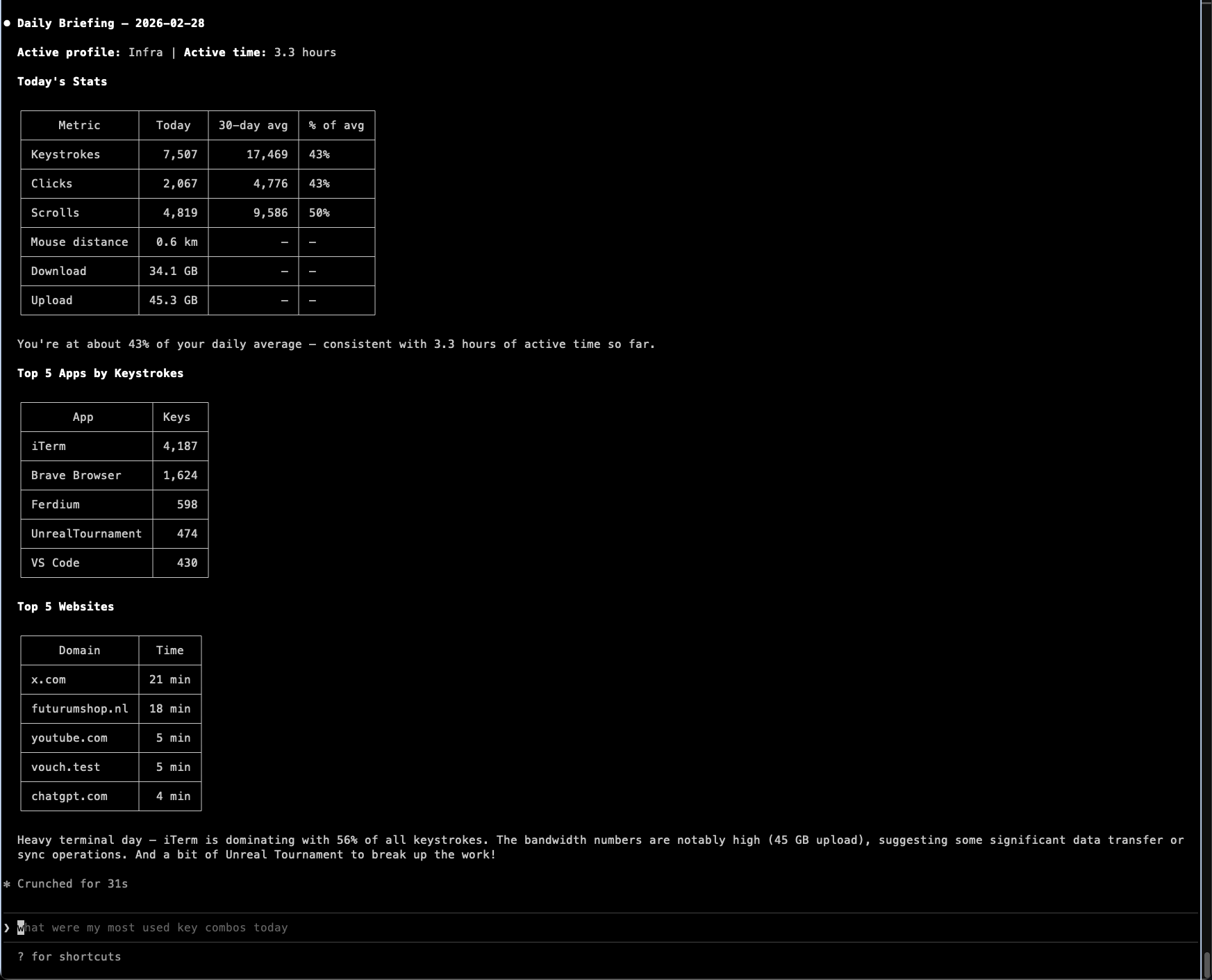
It handles follow-up questions too. Ask for a weekly summary, then ask it to break that down by application or by profile. The AI keeps the context and writes the next query accordingly.
How it works (the geeky details)
The skill file contains the full WhatPulse database schema, Qt key code mappings, unit conversion rules, and query patterns. When you invoke /whatpulse, the AI agent reads these instructions and uses them to write SQLite queries against your local whatpulse.db.
Every query runs with sqlite3 -readonly. The skill enforces this strictly. No writes, no locks, no journal files, no modifications of any kind. Your WhatPulse database is never touched. The AI reads from it the same way you'd open a spreadsheet; look but don't edit.
Note: Having SQLite installed on your system is a prerequisite. Most platforms have it by default, except for Windows. You can download it from here.
The skill auto-detects your database location based on your platform:
- macOS:
~/Library/Application Support/WhatPulse/whatpulse.db - Windows:
%LOCALAPPDATA%\WhatPulse\whatpulse.db - Linux:
~/.config/whatpulse/whatpulse.db
You can also set a WHATPULSE_DB environment variable to point it at a custom location. This is useful for remote setups (more on that below).
Installation
Download the SKILL.md skill file and copy it into your commands directory as whatpulse.md.
macOS / Linux:
mkdir -p ~/.claude/commands
cp whatpulse.md ~/.claude/commands/
Windows (PowerShell):
New-Item -ItemType Directory -Force -Path "$env:USERPROFILE\.claude\commands"
Copy-Item whatpulse.md "$env:USERPROFILE\.claude\commands\"
Restart your AI agent. /whatpulse will show up in your available commands.
This works with Claude Code, OpenClaw, and any agent that supports the skill format.
Remote and synced access
If you run an AI agent on a remote server or cloud instance, you can still query your WhatPulse data. The approach: create a periodic snapshot of your database and sync it to the remote machine.
On the machine running WhatPulse, set up a cron job (or Windows Task Scheduler task) to create a backup every few hours:
0 */4 * * * sqlite3 ~/Library/Application\ Support/WhatPulse/whatpulse.db ".backup '/path/to/synced/whatpulse.db'"
The sqlite3 .backup command produces a consistent snapshot even while WhatPulse is actively writing to the database. Place the backup in a cloud-synced folder (Dropbox, OneDrive, iCloud Drive), or push it with rsync.
On the remote machine, set the environment variable:
export WHATPULSE_DB="/data/whatpulse.db"
The skill picks it up from there.
A note on data and privacy
The skill queries your local database file directly. The raw database never leaves your machine. However, the query results (keystroke counts, application names, bandwidth figures, and so on) are sent to the AI provider's API as part of the conversation so it can analyze the data and formulate a response. This is how all AI coding agents work; they need to see the output to reason about it.
If that matters to you, keep your questions broad (daily totals, top apps) rather than granular. Or run a fully local model through OpenClaw if you want everything to stay on-device.
WhatPulse has always been about giving you visibility into your own usage data. This skill extends that to a conversational interface, with the same trade-offs any cloud AI interaction carries.
You should also always read skill files before installing them. This one is open source and available on our GitHub, so you can see exactly how it works and what data it accesses.
Try it out
If you use Claude Code, OpenClaw, or a compatible AI agent, give it a go. Drop the file in, restart, and type /whatpulse. You might be surprised by what you find in your own data.
The skill file is available on our GitHub page.