
I've just released WhatPulse v6.2, and it adds a few long-requested feature: word counting!
The headlines are word counting, a pause toggle for data collection, and a redesigned input history page. Beyond that, there are various UI tweaks, a new proxy configuration option in the login wizard, native Wayland support on Linux, and a handful of bug fixes.
Details below:
Word counting
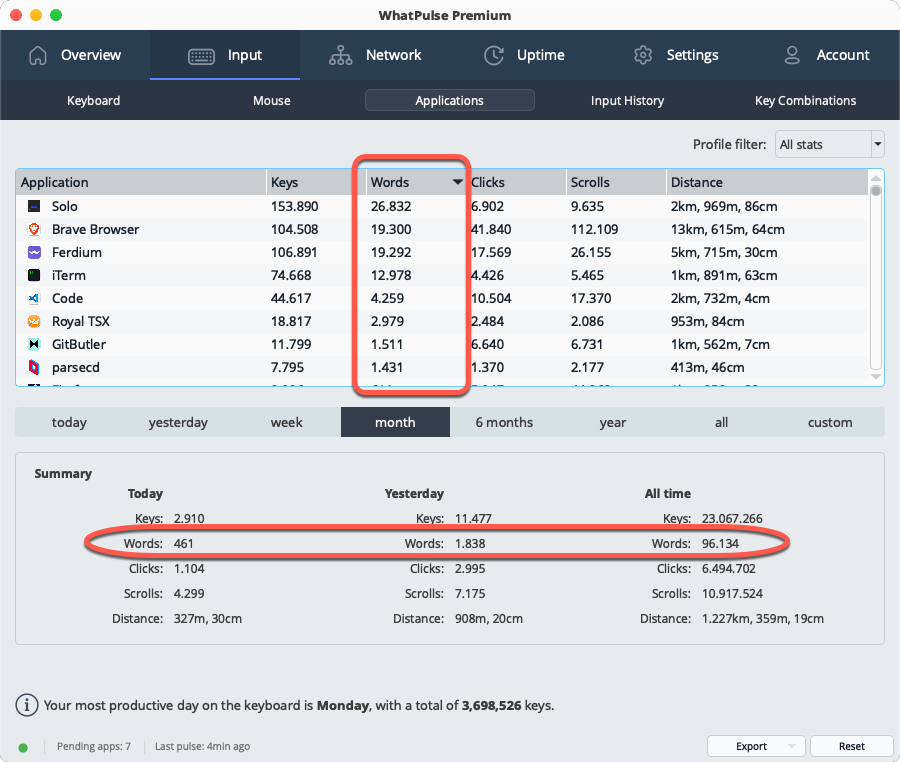
WhatPulse now tracks how many words you type, without ever storing the text. Word counts are inferred from keystroke patterns: word boundaries are detected from key events (spaces, punctuation, enter, etc.), corrections like backspace and delete are handled, and IME input methods are supported. Everything is processed locally and only the numeric counts are kept.
You'll see word counts on the overview tab, input history page, per-application stats, website stats (via the browser extension), exports, and the Geek Window. The feature is on by default and respects your existing keyboard and per-application tracking settings. New Geek Window variables (TotalWords, TodayWords) and Client API fields are available.
Pause data collection
There are moments when you don't want WhatPulse watching — a benchmark, a stress test, a colleague typing on your machine, or just because. The new pause toggle in the tray popup stops collection until you resume it.
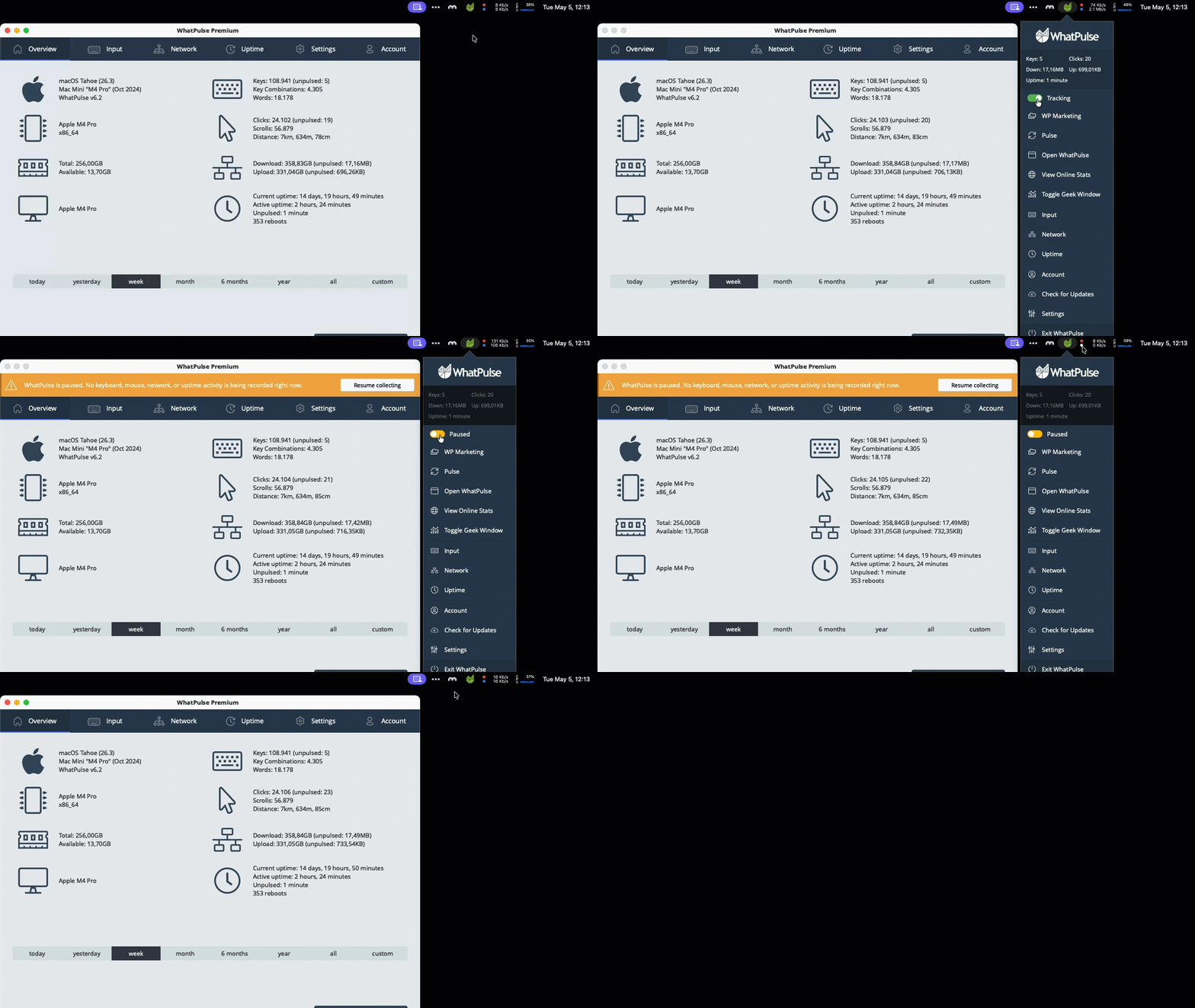
While paused, the status bar pill turns orange with an explanatory tooltip, the overview tab shows an amber banner with a one-click "Resume collecting" button, and the stats grid in the tray popup grays out behind an overlay so you know exactly what's going on. Activity that happens during the pause is dropped rather than buffered, so resuming doesn't retroactively log the paused-period input or bandwidth. The pause is intentionally runtime-only and resets when WhatPulse restarts.
Redesigned input history page
The input history page has been rebuilt with a new look and better usability:
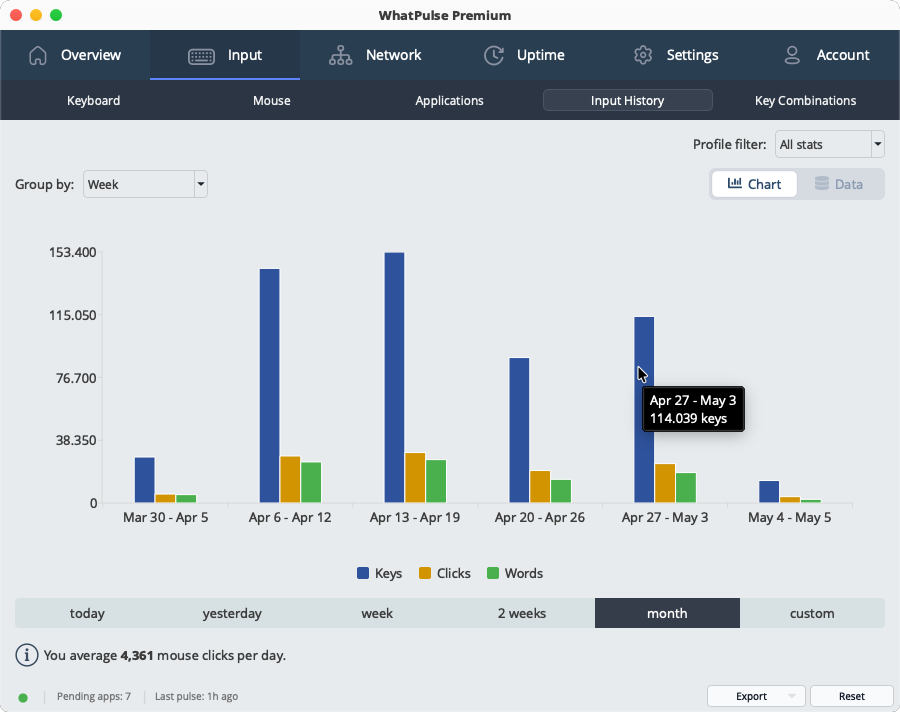
- Grouped bar chart with interactive legend: Click series in the legend to show/hide them. Hidden series free up bar width for the remaining ones. Your legend preferences are remembered across sessions.
- Flexible time periods: Replaced the fixed period dropdowns with the same time period selector used on the uptime page: today through all-time, plus custom date ranges.
- Group by hour, day, week, month or year: A new group-by control lets you zoom in or out on your typing and clicking trends. The default grouping is chosen automatically based on the time period you're viewing, and you can override it at any time.
Configure a proxy from the login wizard
Users behind a corporate proxy can now configure their connection before logging in. A new "Configure proxy..." button on the login and activation pages opens a dedicated proxy dialog, so first-time setup no longer requires reaching the Settings tab (which is only available after authentication).
Native Wayland support on Linux
The Linux AppImage now runs natively on Wayland instead of falling back to X11 compatibility mode. This should improve display scaling, input handling, and overall integration on modern Linux desktops running Wayland.
Smaller UI improvements
- Status bar actions: Reset and Export buttons have moved from individual tab pages into the shared status bar at the bottom. They update based on the active page, freeing up vertical space on every stats page. The export button is now consistently located across the app, and the reset button is less likely to be accidentally clicked.
- New animated toggle: A shiny animated pill toggle replaces the previous mix of buttons and dropdowns for switching between chart and data views, giving a more consistent look across the app.
Fixed
- Fixed proxy settings not persisting between sessions; changes made in Settings > Proxy now save correctly and apply immediately without a restart.
- Windows: Fixed a high CPU usage issue that could occur on startup when running as administrator.
- Windows: Fixed mouse heatmap clustering on displays with DPI scaling, where clicks in the right and bottom portions of the screen were dropped or misattributed to the wrong monitor.
- Windows: Improved detection of application version information, especially for games and smaller tools that don't include full version metadata.
- Fixed the application sync window sorting by "last used" — it was sorting alphabetically on the text (e.g. "22 hours" before "3 days") instead of by actual date.
- Fixed being able to open the FAQ window by clicking on empty space in the row instead of the actual text.
How to update
You can upgrade by using the "Check for Updates" option inside the app, or grab WhatPulse from the Downloads page.
Happy pulsing!
— Martijn & the WhatPulse team